
The Ultimate Guide to Resetting Your Router: Step-by-Step Instructions
Resetting a router can resolve many common internet connectivity problems. This guide provides clear instructions and explanations.
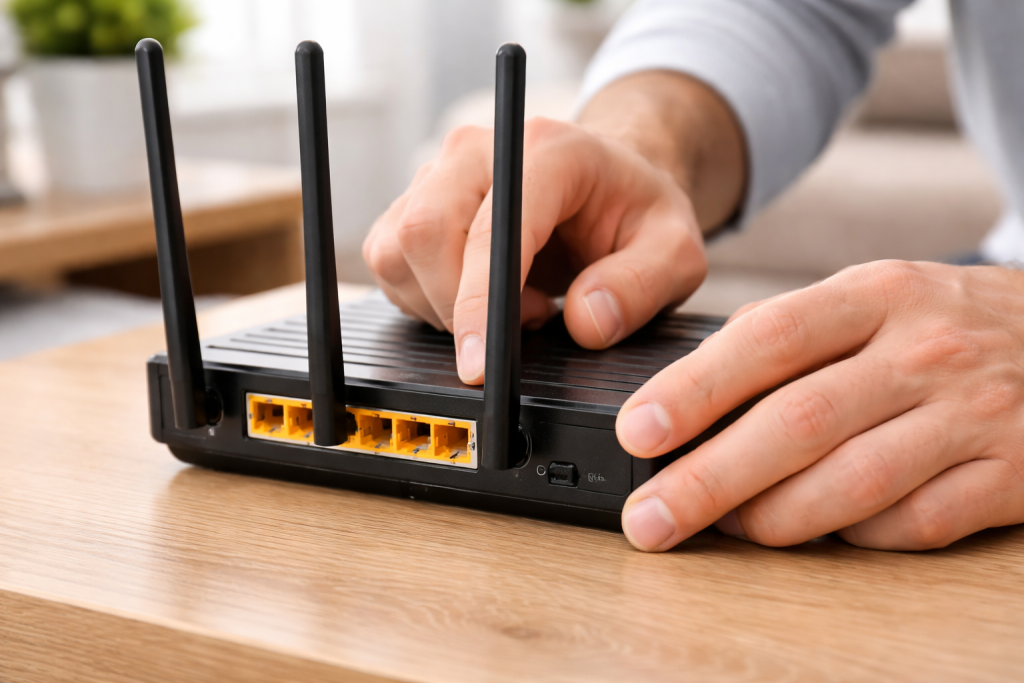
A router acts as the traffic director for your home network, guiding data between your devices and the internet. Like any electronic device, it can sometimes encounter issues, leading to slow speeds, dropped connections, or an inability to access the internet at all. Resetting your router, often referred to as power cycling or restarting, is a basic troubleshooting step that can clear temporary glitches and restore normal operation.
Contents
- 0.1 Common Symptoms of Router Problems
- 0.2 How Resetting Works
- 0.3 Distinguishing a Reset from a Factory Reset
- 0.4 The Simple Reset (Power Cycle) Procedure
- 0.5 Performing a Factory Reset
- 0.6 Persistent Connectivity Problems
- 0.7 Slow Wi-Fi Performance
- 0.8 Router Overheating
- 0.9 Regular Reboots
- 0.10 Router Placement Strategy
- 0.11 Device Management
- 0.12 Observing Router Lights
- 0.13 Keeping the Physical Router Clean
- 0.14 What is Router Firmware?
- 0.15 Why Firmware Updates Matter
- 0.16 How to Update Router Firmware
- 0.17 Post-Reset Security Measures
- 0.18 Unsecured Networks
- 0.19 Persistent and Unresolvable Issues
- 0.20 Complex Network Setups
- 0.21 Hardware Failure
- 0.22 Internet Service Provider Problems
- 0.23 When in Doubt
- 1 FAQs
Common Symptoms of Router Problems
You might suspect your router is experiencing issues if you observe any of the following:
- Slow Internet Speeds: Websites take a long time to load, videos buffer constantly, or downloads are noticeably slower than usual.
- Intermittent Connectivity: Your internet connection drops periodically, requiring you to reconnect or wait for it to stabilize.
- Complete Loss of Internet Access: Devices are unable to connect to the internet, even though the router appears to be powered on.
- Wi-Fi Signal Issues: The Wi-Fi signal is weak or unreliable, even for devices close to the router.
- Unusual Router Behavior: Indicator lights on the router are behaving erratically (e.g., solid red lights, no lights when they should be on).
How Resetting Works
When you reset your router, you are essentially giving it a fresh start. The process involves cutting off the power supply and then restoring it. This action does several things:
- Clears Temporary Memory (RAM): Routers, like computers, have a short-term memory. Over time, this memory can become cluttered with data from active connections and processes. A reset empties this cache, freeing up resources and potentially resolving performance bottlenecks.
- Re-establishes Connection with Your ISP: When a router powers on, it communicates with your Internet Service Provider (ISP) to obtain an IP address and authenticate your connection. A reset ensures this handshake process is performed cleanly.
- Resolves Software Glitches: Like any software-driven device, a router’s firmware can sometimes encounter minor bugs or errors. A restart can clear these temporary software issues.
Think of your router like a busy reception desk. Over the course of a day, many people come and go, and messages pile up. A reset is like closing the desk for a short period, clearing away all the notes and allowing the staff to start fresh when they reopen, ensuring everyone is handled efficiently.
Distinguishing a Reset from a Factory Reset
It is important to differentiate a simple reset from a factory reset.
Simple Reset (Power Cycle)
This is the process of unplugging the router from its power source for a short period and then plugging it back in. It does not erase your custom settings. Your Wi-Fi network name (SSID), password, and any other configurations will remain unchanged. This is the primary method recommended for most common connection issues.
Factory Reset
A factory reset, also known as a hard reset or returning to default settings, is a more drastic measure. It erases all your custom configurations and returns the router to the state it was in when it first came out of the box. This includes:
- Your Wi-Fi network name (SSID) and password.
- Any custom port forwarding rules.
- DHCP settings.
- Parental controls.
- Any other administrative settings you may have configured.
A factory reset is typically used as a last resort when a simple reset fails to resolve persistent issues or when you want to secure a router with unknown settings. It requires reconfiguring the router from scratch.
Resetting your router is a straightforward process that most users can perform.
The Simple Reset (Power Cycle) Procedure
- Locate Your Router: Identify the physical router connected to your modem and providing your Wi-Fi signal. In many homes, the modem and router are combined into a single device.
- Unplug the Power Cord: Carefully find the power adapter plugged into the back of the router and unplug it from the wall outlet or the router itself. Ensure you are unplugging the power to the router, not the modem if they are separate devices.
- Wait for Approximately 30 to 60 Seconds: This waiting period is crucial. It allows the router’s internal components to fully discharge any residual power, ensuring a complete refresh. This is like letting a pot of water cool down completely before trying to reheat it.
- Plug the Power Cord Back In: Reconnect the router’s power adapter to the wall outlet or the router.
- Observe the Router Lights: The router will begin its boot-up sequence. Watch the indicator lights on the front of the device. This process can take anywhere from a few seconds to a couple of minutes. You will typically see lights for power, internet connectivity, and Wi-Fi activity illuminate.
- Wait for Internet Connectivity: Allow the router to fully boot up and establish its connection with your ISP. This is often indicated by a steady “Internet” or “WAN” light (this light’s appearance varies by manufacturer).
- Test Your Connection: Once the router lights indicate normal operation, try connecting a device (computer, phone, tablet) to your Wi-Fi network and access the internet.
Performing a Factory Reset
This procedure should only be undertaken if a simple reset does not solve your problem or if you intend to reconfigure the router completely.
- Locate the Reset Button: The reset button is usually a small, recessed button found on the back or bottom of the router. It is often labeled “Reset.”
- Use a Pin or Paperclip: Because the button is recessed, you will need a thin, pointed object like a straightened paperclip, a pin, or a pen tip to press it.
- Press and Hold the Reset Button:
- Option 1 (Router Powered On): With the router plugged in and powered on, press and hold the reset button for approximately 10 to 30 seconds. The exact duration can vary by manufacturer, so refer to your router’s manual if unsure.
- Option 2 (Router Powered Off): Some manufacturers recommend pressing and holding the reset button while you plug the power cord back in. Again, consult your router’s manual.
- Observe the Router Lights: During the reset process, the router’s lights will typically flash or change patterns, indicating that the reset is in progress.
- Release the Button: Once you observe the light changes or after holding it for the recommended time, release the button.
- Allow the Router to Reboot: The router will restart and revert to its factory default settings. This process can take several minutes.
- Reconnect and Reconfigure: After the router boots up, its default network name (SSID) and password will be printed on a sticker on the router itself. You will need to connect to this default network and then access the router’s administrative interface (usually via a web browser using an IP address like 192.168.1.1 or 192.168.0.1) to set up your new network name, password, and any other desired settings.
After resetting, if you still face problems, delve deeper into common issues.
Persistent Connectivity Problems
If a reset doesn’t fix your internet connection, consider the following:
- Modem Issues: Your modem is the device that connects your home to your ISP’s network. It’s possible the modem might be the source of the problem. Try power cycling your modem as well, by unplugging its power for 30-60 seconds and then plugging it back in. Ensure the modem fully boots before the router does.
- Loose Cables: Check all cable connections, including the coaxial cable (for cable internet) or DSL cable (for DSL internet) plugged into your modem, and the Ethernet cable connecting your modem to your router. Ensure they are securely fastened.
- ISP Outage: It’s always a possibility that your ISP is experiencing an outage in your area. Contact your ISP to inquire about any reported service disruptions.
Slow Wi-Fi Performance
Even with a stable internet connection, Wi-Fi can be sluggish.
- Router Placement: The physical location of your router significantly impacts Wi-Fi signal strength.
- Central Location: Place your router in a central location in your home to maximize coverage.
- Avoid Obstructions: Keep the router away from thick walls, metal objects, and appliances that can cause interference (e.g., microwaves, cordless phones, Bluetooth devices).
- Elevated Position: Placing the router on a shelf or table, rather than on the floor, can improve signal distribution.
- Interference: Other Wi-Fi networks, especially in densely populated areas like apartment buildings, can cause interference. Most routers allow you to change the Wi-Fi channel through their administrative settings. Experimenting with different channels can sometimes improve performance.
- Overcrowded Network: If too many devices are actively using the network simultaneously, it can strain your router’s capacity and slow down performance. Consider disconnecting devices that are not actively in use.
- Wi-Fi Band: Modern routers often broadcast on two bands: 2.4 GHz and 5 GHz.
- 2.4 GHz: Offers a wider range but is more susceptible to interference and slower speeds.
- 5 GHz: Provides faster speeds and less interference but has a shorter range. Try connecting devices that require higher performance to the 5 GHz band if possible.
Router Overheating
Routers generate heat. If they are placed in enclosed spaces or have poor ventilation, they can overheat, leading to performance issues or unexpected shutdowns.
- Ensure Ventilation: Make sure the router has adequate airflow around it. Do not place it inside cabinets or cover it with anything.
- Check for Dust: Accumulations of dust can impede airflow. Gently clean the router’s vents with a soft brush or compressed air.
Proactive maintenance can prevent many issues before they arise.
Regular Reboots
Even if you’re not experiencing problems, scheduling a weekly or bi-weekly router reboot can help keep it running smoothly. This can be automated using smart plugs or scheduled tasks on some router models.
Router Placement Strategy
As mentioned, optimal placement is key. Regularly assess if your router’s location still serves your needs as your home layout or device usage changes.
Device Management
Be mindful of the number of devices actively connected to your network. Router capabilities vary, and older or less powerful routers can become overloaded with too many simultaneous connections.
Observing Router Lights
Understand what the indicator lights on your router signify. Consult your router’s manual to decipher their meaning. A consistent pattern of lights usually indicates normal operation, while unusual blinking or solid red lights often point to a problem.
Keeping the Physical Router Clean
Dust accumulation is a silent performance killer. Periodically clean your router’s vents to ensure proper cooling and airflow.
Firmware is the internal software that controls your router’s operations. Keeping it up-to-date is crucial.
What is Router Firmware?
Firmware is software embedded in the router’s hardware. It dictates how the router communicates with your ISP, manages your local network, and handles security. It’s like the router’s operating system.
Why Firmware Updates Matter
- Performance Improvements: Manufacturers often release firmware updates that optimize the router’s performance, leading to faster speeds and more stable connections. These updates can streamline how the router handles traffic.
- Bug Fixes: Updates address known bugs and glitches in the router’s existing firmware, enhancing its reliability.
- Security Enhancements: This is perhaps the most critical reason. As new security threats emerge, manufacturers release firmware updates to patch vulnerabilities, protecting your network from unauthorized access and cyberattacks. An unpatched router is like a house with an unlocked door, making it an accessible target.
- New Features: Occasionally, firmware updates introduce new features or improve existing ones, such as enhanced Wi-Fi settings or new management capabilities.
How to Update Router Firmware
The process of updating firmware generally involves accessing your router’s administrative interface:
- Access Router Settings: Open a web browser on a device connected to your router and type the router’s IP address into the address bar (commonly 192.168.1.1 or 192.168.0.1). You will be prompted for a username and password.
- Locate Firmware Update Section: Navigate through the router’s settings menus. Look for sections labeled “Administration,” “System,” “Maintenance,” or “Firmware Upgrade.”
- Check for Updates: Within the firmware section, there will usually be an option to “Check for Updates” or “Download Latest Firmware.”
- Initiate Update: If an update is available, follow the on-screen prompts to download and install it. The router will likely restart during this process. Do not interrupt the process by powering off the router or disconnecting it from the internet.
- Manual Updates: In some cases, you may need to manually download the firmware file from the router manufacturer’s website. Ensure you download the correct file for your specific router model. Then, upload this file through the router’s administrative interface.
Resetting, especially a factory reset, has security implications.
Post-Reset Security Measures
After performing a factory reset, the router reverts to its default security settings. This means:
- Default Passwords: The administrative login password and Wi-Fi password will be set to the manufacturer’s default, which are often weak and publicly known.
- Open Wi-Fi (Potentially): In some rare cases, a factory reset might revert Wi-Fi security to an open state until you reconfigure it.
Therefore, immediately after a factory reset, it is paramount to:
- Change the Administrator Password: This is the password you use to access the router’s settings page. Do not leave it as the default. Choose a strong, unique password.
- Set Up Strong Wi-Fi Encryption: Choose WPA2 or WPA3 encryption for your Wi-Fi network and set a strong, complex password that is difficult to guess. Avoid using common words or easily guessable sequences.
- Review Router Settings: Go through all the router’s settings to ensure they are configured according to your needs and security preferences.
Unsecured Networks
If you are using a public Wi-Fi network or a network whose security you cannot verify, it is advisable to use a Virtual Private Network (VPN). A VPN encrypts your internet traffic, making it unreadable to anyone trying to intercept it, even if the network itself is compromised. Resetting a router within a compromised network does not inherently secure your devices from that network’s vulnerabilities.
While most router problems can be solved with basic troubleshooting, there are times when professional assistance is necessary.
Persistent and Unresolvable Issues
If you have followed all the steps in this guide, including resetting your router and modem, checking cables, and updating firmware, and you are still experiencing significant connectivity problems, it’s time to consider professional intervention.
Complex Network Setups
If you have a more complex home network, such as one involving multiple routers, access points, or advanced configurations like VLANs, you might benefit from the expertise of a network technician. They can diagnose issues within these intricate setups.
Hardware Failure
Routers, like any electronic device, can fail due to age or manufacturing defects. If your router has experienced physical damage, exhibits signs of overheating beyond what’s normal, or refuses to power on even after trying different outlets and cables, it might be a hardware issue.
Internet Service Provider Problems
In some instances, the problem might not be with your router but with the service provided by your ISP. If you suspect an issue with the line coming into your home or with the ISP’s equipment, contacting their technical support is the appropriate step. They can perform remote diagnostics and dispatch a technician if necessary.
When in Doubt
If you are unsure about a particular step, uncomfortable performing a reset, or simply want a second opinion, reaching out to your ISP’s support or a qualified IT professional is a wise decision. They have the tools and knowledge to diagnose and resolve a wide range of networking issues efficiently.
FAQs
1. Why do I need to reset my router?
Resetting your router can help resolve common issues such as slow internet speed, dropped connections, and network conflicts. It can also clear out any temporary glitches or errors that may be affecting your router’s performance.
2. How do I reset my router?
To reset your router, locate the reset button on the back or bottom of the device. Use a paperclip or similar tool to press and hold the reset button for 10-15 seconds. This will restore the router to its factory default settings.
3. What are some common router issues that can be resolved by resetting the router?
Common router issues that can be resolved by resetting the router include slow internet speed, intermittent connectivity, network conflicts, and difficulty connecting to the internet.
4. How often should I reset my router?
It is recommended to reset your router only when you are experiencing issues with your internet connection or network performance. There is no need to reset your router on a regular basis if everything is functioning properly.
5. When should I seek professional help for router issues?
If you have tried resetting your router and are still experiencing persistent issues with your internet connection or network performance, it may be time to seek professional help. A professional technician can diagnose and resolve more complex router issues.

At SecureByteHub, we are passionate about simplifying cybersecurity and technology for everyone. Our goal is to provide practical, easy-to-understand guides that help individuals, students, and small businesses stay safe in the digital world. From online security tips to the latest tech insights, we aim to empower our readers with knowledge they can trust