
Protect Your Computer: The Essential Step-by-Step Guide to Malware Removal
The digital world offers convenience and connection, but it also harbors threats. Malware, short for “malicious software,” is a significant concern for computer users. This guide provides a straightforward approach to understanding, identifying, and removing malware, alongside strategies for future prevention.
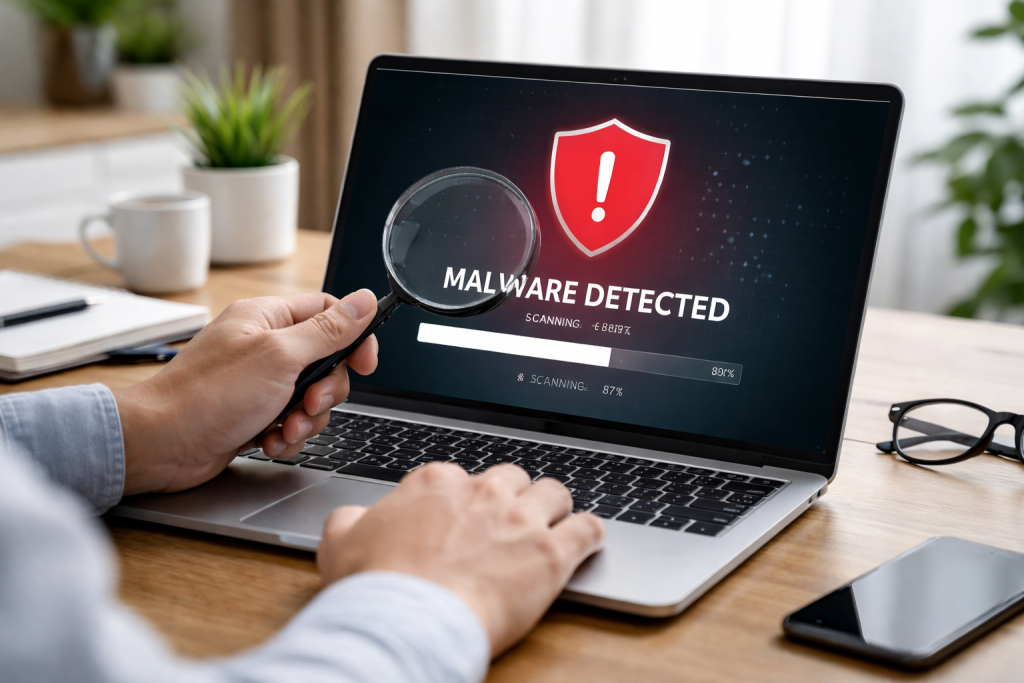
Malware is a broad category of software designed to disrupt, damage, or gain unauthorized access to computer systems. Think of malware as a digital burglar, aiming to break into your computer, steal your belongings (data), or vandalize your home (system). It can manifest in various forms, each with its objective and method of operation.
Contents
- 0.1 Types of Malware
- 0.2 How Malware Affects Your Computer
- 0.3 Common Indicators of Malware
- 0.4 Initial Steps
- 0.5 Removal Process
- 0.6 Post-Removal Steps
- 0.7 Antivirus and Anti-Malware Software
- 0.8 System Utilities
- 0.9 USB Drives and External Storage
- 0.10 Maintaining a Secure Operating Environment
- 0.11 Safe Online Habits
- 0.12 Data Security Measures
- 0.13 When Professional Help is Necessary
- 1 FAQs
- 1.1 What is malware, and how does it affect my computer?
- 1.2 How can I recognize the signs of a malware infection on my computer?
- 1.3 What are the essential steps for removing malware from my computer?
- 1.4 What are the best practices for preventing future malware infections?
- 1.5 When should I seek professional help for malware removal?
Types of Malware
- Viruses: These are self-replicating programs that attach themselves to existing files. When the infected file is executed, the virus spreads to other files on the system. A computer virus is like a biological virus, able to copy itself and infect healthy cells.
- Worms: Similar to viruses, worms are self-replicating. However, they do not need to attach themselves to an existing program. They can spread independently across networks, infecting multiple computers without user interaction. A worm is like a wildfire, spreading rapidly and uncontrollably.
- Trojans: Named after the Greek myth, Trojans disguise themselves as legitimate software or files. Once installed, they execute malicious functions in the background, such as stealing data or creating backdoors for attackers. A Trojan horse is a deceptive gift, appearing harmless but containing hidden dangers.
- Spyware: This type of malware secretly monitors your online activity and collects personal information, such as browsing habits, login credentials, and financial details. Spyware acts like a hidden eavesdropper, listening in on your digital conversations.
- Adware: While not always malicious, adware displays unwanted advertisements on your computer, often in pop-up windows. It can slow down your system and, in some cases, may collect data about your browsing. Adware is like an aggressive salesperson who won’t leave you alone.
- Ransomware: This form of malware encrypts your files, making them inaccessible. The attacker then demands a ransom payment in exchange for the decryption key. Ransomware encrypts your data and demands payment to unlock it.
- Rootkits: Rootkits are designed to gain root-level access (administrator privileges) to a computer and conceal their presence. This allows attackers to maintain persistent control over the system undetected. A rootkit is like an invisible intruder who can move freely and rearrange things without you knowing.
How Malware Affects Your Computer
The impact of malware can range from minor annoyances to catastrophic data loss. Common effects include:
- Slowed Performance: Malware actively running in the background consumes system resources, leading to a noticeable decrease in your computer’s speed and responsiveness.
- Unwanted Pop-ups and Advertisements: Adware can flood your screen with intrusive ads, disrupting your work and browsing experience.
- System Crashes and Instability: Malware can corrupt system files, leading to frequent crashes, error messages, and overall system instability.
- Data Theft and Loss: Spyware and Trojans can steal sensitive personal and financial information. Ransomware can render your important files completely inaccessible.
- Unauthorized Access: Some malware creates backdoors, allowing attackers to remotely control your computer, access your files, or use your computer as part of a botnet.
- Identity Theft: Stolen personal information can be used for fraudulent activities, leading to identity theft.
The first line of defense is to identify potential malware infections. Early detection can significantly minimize damage. Pay attention to changes in your computer’s behavior.
Common Indicators of Malware
- Sudden Decrease in Performance: If your computer suddenly becomes significantly slower, even when you’re not running demanding programs, it could be a sign of malware consuming resources.
- Unexpected Pop-ups and Ads: Experiencing an influx of pop-up ads, especially those that are difficult to close or appear on websites where they shouldn’t, is a strong indicator of adware.
- Unusual System Behavior: This includes your computer freezing or crashing frequently, applications not responding, or your browser redirecting to unexpected websites.
- Changes to Your Homepage or Search Engine: If your web browser’s default homepage or search engine has changed without your consent, malware may have altered your settings.
- New Toolbars or Icons Appearing: The appearance of unfamiliar toolbars in your browser or new icons on your desktop often signifies the installation of unwanted software.
- Increased Network Activity: If you notice excessive use of your internet connection, even when you are not actively browsing or downloading, malware might be communicating with external servers.
- Files Disappearing or Being Modified: If you find files missing from your computer or notice that they have been altered in ways you didn’t perform, it could be a sign of malicious activity.
- Antivirus Software Disabled: Some malware attempts to disable your antivirus software to avoid detection. If your security software stops working unexpectedly, it warrants investigation.
- Friends Receiving Spam from Your Account: If your email or social media accounts start sending out spam messages to your contacts, your account may have been compromised by malware.
Once you suspect a malware infection, immediate action is crucial. This methodical approach aims to remove the threat safely and restore your system.
Initial Steps
- Disconnect from the Internet: The first and most important step is to immediately disconnect your computer from the internet (both Wi-Fi and Ethernet). This prevents the malware from communicating with its command-and-control servers, downloading further malicious payloads, or spreading to other devices on your network.
- Boot into Safe Mode: Restart your computer and boot it into Safe Mode. Safe Mode starts Windows with a minimal set of drivers and services. This step often prevents malware from loading and running, making it easier to detect and remove.
- On Windows 10 and 11: Access Safe Mode by going to Settings > Update & Security > Recovery > Advanced startup > Restart now. After it restarts, go to Troubleshoot > Advanced options > Startup Settings > Restart. After restarting again, you’ll see a list of options. Select 4 or press F4 to start your computer in Safe Mode, or select 5 or press F5 for Safe Mode with Networking (if you need internet access for downloading tools).
- For older Windows versions, the process typically involves repeatedly pressing the F8 key during the startup process before the Windows logo appears.
- Delete Temporary Files: Malware often hides in temporary file locations. Open the Disk Cleanup tool (search for “Disk Cleanup” in the Start menu). Select your main drive (usually C:) and check the box for “Temporary files” and “Temporary Internet Files,” then click “OK” to clean them.
Removal Process
- Run a Full System Scan with Your Antivirus Software: If you have antivirus software installed, ensure it is updated to its latest definition files (you may need to temporarily enable networking in Safe Mode for this, which carries a slight risk). Then, perform a full system scan. Let the antivirus software quarantine or delete any detected threats.
- Use a Second Opinion Scanner: It is highly recommended to use a reputable, on-demand second opinion malware scanner. These tools are designed to find threats that your primary antivirus might have missed. Popular options include Malwarebytes, ESET Online Scanner, or HitmanPro. Download these tools on a clean computer, save them to a USB drive, and then transfer them to your infected computer while in Safe Mode. Run full scans with each of these.
- Remove Suspicious Programs: Go to your computer’s Control Panel (or Settings > Apps) and review the list of installed programs. Uninstall any software you don’t recognize or that was installed around the time you first noticed symptoms of an infection. Be cautious when uninstalling; if you are unsure about a program, research it online before deleting it.
- Check Browser Extensions and Settings: Malware often targets web browsers. Open each of your web browsers (Chrome, Firefox, Edge, etc.) and go to the extensions or add-ons section. Remove any extensions you didn’t intentionally install. Also, check your browser settings for any changes to your homepage, search engine, and startup pages, and revert them to your preferred settings.
- Clean the Registry (Use with Extreme Caution): The Windows Registry is a database that stores configuration settings for applications and the operating system. Malware can leave behind entries in the registry. However, incorrect modifications to the registry can cause serious system damage. Only attempt registry cleaning if you are very comfortable with the process and have backed up your registry beforehand. Specialized removal tools often handle registry cleaning as part of their process.
Post-Removal Steps
- Restart Your Computer Normally: Once the scans are complete and suspicious items have been removed, restart your computer in normal mode.
- Perform Another Full Scan: After booting into normal mode, run another full scan with your primary antivirus and your second opinion scanners to ensure no threats remain.
- Change Your Passwords: It is crucial to change all your passwords for online accounts, especially for banking, email, and social media. Assume that your credentials may have been compromised during the infection.
- Update Your Operating System and Software: Ensure your operating system and all installed software are up to date with the latest security patches. This closes known vulnerabilities that malware exploits.
Having the right tools readily available can make the difference between a smooth cleanup and a frustrating ordeal. Think of these as your digital first-aid kit.
Antivirus and Anti-Malware Software
- Real-time Antivirus: This is your primary defense. It continuously monitors your system for threats. Keep it updated. Examples include Windows Defender, Norton, McAfee, Bitdefender, and Kaspersky.
- On-Demand Malware Scanners: These are crucial for second opinions. They don’t run in the background but can be deployed to find threats your primary antivirus might miss. Examples: Malwarebytes, ESET Online Scanner, Sophos Virus Removal Tool.
- Rootkit Scanners: Some specialized tools are designed to detect and remove rootkits, which are particularly stealthy.
System Utilities
- Disk Cleanup: Built into Windows, this tool helps remove unnecessary temporary files where malware can hide.
- System Information Tools: Tools that provide detailed information about your system’s processes and startup programs can help identify unusual entries.
- Registry Editors (Advanced Users): For experienced users, a registry editor can be used to manually investigate and remove malicious registry entries, but this is a task that requires extreme caution.
USB Drives and External Storage
- Bootable Rescue Disks: Many security vendors offer bootable rescue disks (ISOs) that you can burn to a DVD or USB drive. These tools boot your computer from the rescue media, bypassing your installed operating system, allowing you to scan and clean your system from a pristine environment. This is particularly effective against stubborn malware.
- Clean USB Drive for Downloading Tools: Having a clean USB drive is essential for transferring downloaded malware removal tools from a healthy computer to an infected one, especially when working in Safe Mode.
Proactive measures are far more effective and less stressful than dealing with an infection. Think of these as building a strong fence around your digital property.
Maintaining a Secure Operating Environment
- Keep Your Operating System Updated: Enable automatic updates for your operating system. These updates often contain critical security patches that fix vulnerabilities exploited by malware.
- Update All Software Regularly: This includes your web browsers, email clients, office suites, PDF readers, and any other regularly used applications. Vulnerabilities exist in many software programs, and updates patch these holes.
- Install and Maintain Reputable Antivirus Software: Ensure your antivirus software is always running and regularly updated with the latest virus definitions. Schedule regular full system scans.
- Use a Firewall: A firewall acts as a barrier between your computer and the internet, monitoring incoming and outgoing network traffic. Most operating systems have a built-in firewall; ensure it is enabled.
Safe Online Habits
- Be Wary of Email Attachments and Links: Do not open attachments from unknown senders or click on suspicious links in emails, even if they appear to be from someone you know. Phishing emails are a common way malware spreads.
- Download Software Only from Trusted Sources: Stick to official websites or well-known, reputable software repositories. Be cautious of free software offered on unfamiliar sites, as it may bundle malware.
- Avoid Suspicious Websites: Steer clear of websites that promote illegal content, offer unrealistic deals, or display excessive pop-up ads.
- Use Strong, Unique Passwords: Create complex passwords that combine uppercase and lowercase letters, numbers, and symbols. Use a different password for each online account. Consider using a password manager.
- Enable Two-Factor Authentication (2FA): Where available, enable 2FA on your online accounts. This adds an extra layer of security, requiring a second form of verification beyond your password.
- Back Up Your Data Regularly: Regularly back up your important files to an external hard drive, cloud storage, or network-attached storage (NAS). This ensures you can recover your data in case of a ransomware attack or other data loss events.
Protecting your personal information is paramount. Malware often targets data for identity theft, financial fraud, or to sell on the dark web.
Data Security Measures
- Encrypt Sensitive Data: For highly sensitive files, consider using encryption software to protect them. This makes the data unreadable without a decryption key.
- Be Cautious with Public Wi-Fi: Public Wi-Fi networks are often unsecured, making it easier for attackers to intercept your data. Avoid accessing sensitive accounts or performing financial transactions when connected to public Wi-Fi. Use a Virtual Private Network (VPN) for added security.
- Secure Your Wi-Fi Network: If you use a home Wi-Fi network, ensure it is secured with a strong password and uses WPA2 or WPA3 encryption.
- Limit Information Sharing: Be judicious about the personal information you share online, especially on social media platforms.
- Regularly Review Account Statements: Monitor your bank statements, credit card statements, and other financial accounts for any unauthorized activity. Report suspicious transactions immediately.
- Secure Physical Devices: Protect laptops, smartphones, and other devices against physical theft. If a device is lost or stolen, ensure it is password-protected and consider remote wipe capabilities.
While this guide provides comprehensive steps for malware removal, some situations warrant professional assistance. Think of a security expert as a specialist surgeon for complex digital ailments.
When Professional Help is Necessary
- Persistent Infections: If you have followed the removal steps meticulously but the malware keeps returning or resisting removal, it may have embedded itself deeply within your system.
- Ransomware Attacks: If your files are encrypted by ransomware, attempting to remove it yourself can sometimes lead to irreversible data loss. A professional may have access to specialized decryption tools or recovery strategies.
- Critical Data Involved: If the infected computer contains highly sensitive or critical personal, financial, or business data, it is often best to involve a professional to ensure the most secure and effective removal process with minimal risk of data corruption.
- Lack of Technical Proficiency: If you are not comfortable with advanced troubleshooting, navigating complex settings, or working in Safe Mode, attempting malware removal can be risky. A professional can handle these tasks with expertise.
- Network-Wide Infections: If you suspect multiple computers on your network are infected, or if the infection originates from a network device, a professional can address the issue comprehensively.
- Damage to System Files: If your operating system has become severely corrupted due to the malware, a professional can assess the damage and recommend appropriate repair or reinstallation steps.
A computer security expert has the advanced tools, knowledge, and experience to tackle even the most persistent and damaging malware threats. They can also provide tailored advice for strengthening your system’s defenses against future attacks.
FAQs
What is malware, and how does it affect my computer?
Malware is a type of software designed to damage or gain unauthorized access to a computer system. It can include viruses, worms, trojans, ransomware, spyware, and adware. Malware can slow down your computer, steal personal information, and even render your system unusable.
How can I recognize the signs of a malware infection on my computer?
Signs of a malware infection can include slow performance, frequent crashes, unusual pop-up ads, unauthorized changes to settings, and unexplained use of network resources. Additionally, if you notice unfamiliar programs or files on your computer, it could be a sign of malware.
What are the essential steps for removing malware from my computer?
The essential steps for removing malware from your computer include running a reputable antivirus or anti-malware program, performing a full system scan, quarantining or deleting any identified threats, and resetting your web browser settings. It’s also important to update your operating system and all installed software to patch any vulnerabilities that may have been exploited by the malware.
What are the best practices for preventing future malware infections?
To prevent future malware infections, it’s important to keep your operating system, software, and antivirus programs up to date. Be cautious when clicking on links or downloading attachments from unknown sources, and regularly back up your important files to an external storage device or cloud service. Additionally, consider using a firewall and practicing safe browsing habits.
When should I seek professional help for malware removal?
If you are unable to remove the malware on your own, or if you suspect that your computer has been severely compromised, it’s best to seek professional help from a computer security expert. Signs that you may need professional assistance include persistent malware infections, unusual behavior on your computer, and the inability to access important files or programs.

At SecureByteHub, we are passionate about simplifying cybersecurity and technology for everyone. Our goal is to provide practical, easy-to-understand guides that help individuals, students, and small businesses stay safe in the digital world. From online security tips to the latest tech insights, we aim to empower our readers with knowledge they can trust