
Windows 11 Security Settings Demystified: Protecting Your Digital World
Contents
- 1 Understanding Windows 11 Security Settings
- 1.1 The Importance of Windows 11 Security Settings
- 1.2 Exploring Key Security Features in Windows 11
- 1.3 Step-by-Step Guide to Configuring Windows 11 Security Settings
- 1.4 Best Practices for Securing Your Digital World with Windows 11
- 1.5 Common Misconceptions About Windows 11 Security Settings
- 1.6 Tips for Enhancing Windows 11 Security Beyond Default Settings
- 1.7 How Windows 11 Security Settings Can Safeguard Your Personal and Professional Data
Understanding Windows 11 Security Settings
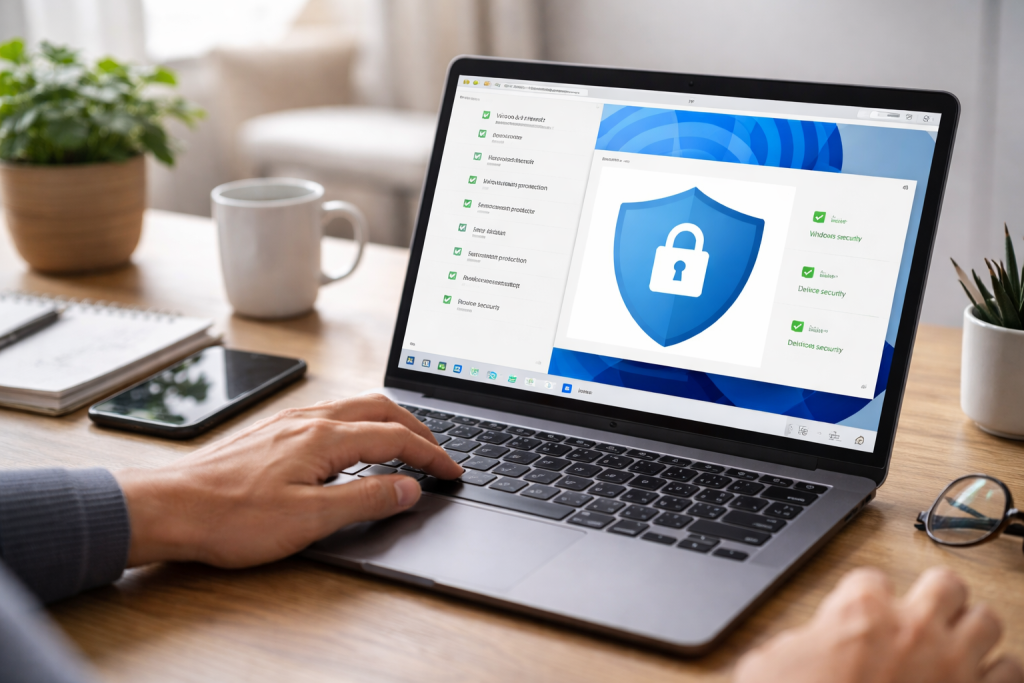
Windows 11, like its predecessors, offers a range of security features designed to protect user data and maintain system integrity. These settings, often overlooked, form the foundation of a user’s digital defense. Understanding and configuring them correctly is crucial in an environment where cyber threats are constant. This article aims to clarify these settings, providing a practical guide for users to enhance their system’s security.
The Importance of Windows 11 Security Settings
Think of your computer as a house. The Windows 11 operating system is the house itself, and the security settings are the locks on your doors and windows, the alarm system, and even the fences around your property. Neglecting these settings is akin to leaving your doors unlocked or windows open, inviting unwelcome intrusions. Data breaches, malware infections, and identity theft are real risks that can stem from inadequate security configurations. For individuals, this could mean compromised personal photos, banking information, or social media accounts. For professionals, it could involve the loss of sensitive business data, intellectual property, or client information, leading to significant financial and reputational damage. The digital landscape is a challenging one, and proactive security measures are essential for navigating it safely.
Exploring Key Security Features in Windows 11
Windows 11 integrates several security features, some inherited from Windows 10, and others enhanced or newly introduced. These features work together to create a layered defense.
Windows Defender Antivirus
Windows Defender, now more formally known as Microsoft Defender Antivirus, is the built-in anti-malware solution. It provides real-time protection against viruses, ransomware, spyware, and other malicious software. It continuously scans files, programs, and downloads for threats. When a threat is detected, Defender quarantines or removes it. This feature is often the first line of defense against most common digital threats. While third-party antivirus solutions exist, Microsoft Defender Antivirus has significantly improved over the years and offers robust protection out of the box.
Firewall and Network Protection
The Windows Firewall acts as a barrier between your computer and external networks. It monitors incoming and outgoing network traffic, blocking unauthorized connections. You can configure the firewall to allow specific applications to communicate over the network while blocking others. This is like a security guard at the entrance of your house, checking the credentials of everyone trying to enter or leave. Network protection extends to public and private networks, offering different levels of security depending on the perceived risk. For instance, a public Wi-Fi network will have more restrictive firewall rules than a trusted home network.
Account Protection
This section within Windows Security focuses on user account security.
- Windows Hello: This biometric authentication system allows users to sign in using facial recognition, fingerprint, or a PIN. It offers a more convenient and secure alternative to traditional passwords, which can be weak or easily compromised.
- Dynamic Lock: This feature automatically locks your device when your paired phone is out of Bluetooth range. It’s a simple yet effective way to prevent unauthorized access if you step away from your computer.
- Passwordless Experience: Windows 11 encourages a move towards passwordless authentication, reducing the reliance on easily phishable or guessable passwords.
App and Browser Control
This area covers SmartScreen, an integral component for protecting against malicious websites and downloads.
- Microsoft Defender SmartScreen: This technology runs in the background, checking websites you visit and files you download for known threats. If SmartScreen detects a suspicious site or file, it will warn you before you proceed, potentially preventing malware infections or phishing attempts. It’s like having a digital tour guide who warns you about dangerous neighborhoods online.
- Exploit Protection: This feature helps protect your device from advanced attacks by applying various mitigations to processes and programs. It’s designed to make it harder for attackers to exploit vulnerabilities in software.
Device Security
This category contains advanced hardware-based security features.
- Core Isolation: This leverages virtualization-based security to isolate critical system processes from the operating system and other applications. This helps protect against malware that attempts to inject malicious code into core system components.
- Memory Integrity: A sub-feature of Core Isolation, Memory Integrity ensures that drivers and system files are secure and trusted, preventing malicious code from being injected into high-security processes.
- Secure Boot: This ensures that your system only loads trusted software during the boot process, preventing boot sector malware from taking control before Windows even starts.
Device Performance and Health
While not strictly a security feature, this section offers insights into the overall health and performance of your device. It flags issues that might indirectly impact security, such as low storage, outdated drivers, or critical updates that need to be installed. A healthy system is generally a more secure system.
Step-by-Step Guide to Configuring Windows 11 Security Settings
Optimizing your Windows 11 security involves a methodical approach to each setting. You can access most security controls through the “Windows Security” application. To open it, type “Windows Security” in the Windows Search bar and press Enter.
Reviewing Microsoft Defender Antivirus
Open “Windows Security,” then select “Virus & threat protection.”
- Current threats: Check the “Current threats” section for any detected issues. If threats are found, follow the prompts to resolve them.
- Virus & threat protection settings: Click “Manage settings.” Ensure “Real-time protection” is toggled “On.” This is critical for continuous scanning.
- Updates: Under “Virus & threat protection updates,” click “Check for updates” to ensure your antivirus definitions are current. An outdated antivirus is like a guard who doesn’t know the faces of new criminals.
Customizing Firewall and Network Protection
Navigate to “Firewall & network protection” in “Windows Security.”
- Network profiles: Identify your currently active network profile (Domain, Private, or Public). For most home users, this will be “Private network.” For users on public Wi-Fi, it will be “Public network.”
- Allow an app through firewall: If you encounter issues with a specific application not connecting to the internet, you may need to allow it through the firewall here. Exercise caution and only allow trusted applications.
- Advanced settings: For more granular control, click “Advanced settings.” This opens the “Windows Defender Firewall with Advanced Security” console, where you can create custom inbound and outbound rules, though this is typically for advanced users.
Strengthening Account Protection
Go to “Account protection” in “Windows Security.”
- Windows Hello: Click “Set up Windows Hello” if you haven’t already. Configure fingerprint or facial recognition for quicker and more secure logins.
- Dynamic Lock: Within “Account protection,” click “Dynamic Lock settings.” Check the box to “Allow Windows to automatically lock your device when you’re away.” Ensure your phone is paired via Bluetooth for this to function.
Enhancing App and Browser Control
Open “App & browser control” in “Windows Security.”
- Reputation-based protection settings: Click “Reputation-based protection settings.” Ensure all options, including “Check apps and files,” “SmartScreen for Microsoft Edge,” “SmartScreen for Microsoft Store apps,” and “Potentially unwanted app blocking,” are enabled. This provides broad protection against unverified downloads and suspicious websites.
- Exploit Protection: Click “Exploit Protection settings.” For most users, “System settings” should remain at their default values (“On by default”). Avoid changing these without understanding their implications.
Verifying Device Security
Go to “Device security” in “Windows Security.”
- Core isolation: Click “Core isolation details.” Ensure “Memory integrity” is toggled “On.” If it’s off, follow the instructions to enable it, which may require a system restart.
- Secure Boot: Verify that “Secure Boot” is “On.” If it’s not, you may need to enable it in your computer’s BIOS/UEFI settings. Consult your computer manufacturer’s documentation for specific instructions.
Best Practices for Securing Your Digital World with Windows 11
Beyond configuring individual settings, adopting certain practices reinforces your overall security posture.
Regular Software Updates
Keeping Windows 11 and all installed applications updated is paramount. Updates often include security patches that fix newly discovered vulnerabilities. Running outdated software is like leaving a known weakness in your wall for attackers to exploit. Enable automatic updates for Windows and regularly check for application updates.
Strong Passwords and Multi-Factor Authentication
Even with Windows Hello, some online services still rely on passwords. Use strong, unique passwords for all accounts, ideally employing a password manager. Enable multi-factor authentication (MFA) wherever possible. MFA adds an extra layer of security, typically requiring a code from your phone or a hardware key in addition to your password.
Careful Downloads and Attachments
Be skeptical of unsolicited emails, pop-ups, or websites promising free software or tempting offers. Malicious software is often disguised as legitimate programs or embedded within attachments. Always download software from official sources and scrutinize email attachments before opening them.
Regular Backups
Security isn’t just about preventing intrusions; it’s also about recovery. Regularly back up your important data to an external drive or cloud storage. In the event of a ransomware attack or system failure, a recent backup can be your salvation, allowing you to restore your files without paying a ransom or losing valuable data.
Common Misconceptions About Windows 11 Security Settings
Several misunderstandings persist regarding Windows 11 security. Addressing these can help users make more informed decisions.
“Antivirus is Enough”
While Microsoft Defender Antivirus provides significant protection, it is only one component of a broader security strategy. Relying solely on antivirus, without a firewall, strong passwords, and careful browsing habits, leaves other attack vectors open. Think of it as having a strong lock on one door but leaving the other doors and windows unsecured.
“Security Settings Slow Down My PC”
Modern security features are designed to have a minimal impact on system performance. While some processes, like full system scans, might temporarily use more resources, the overall effect on daily operations is often negligible. The benefits of protection far outweigh any minor performance dip.
“I Don’t Have Anything Worth Stealing”
This sentiment is often inaccurate. Even if you believe your data has no monetary value, your identity, email account, or computer itself can be valuable to attackers. Your machine could be used as part of a botnet for malicious activities, or your email could be used to impersonate you.
Tips for Enhancing Windows 11 Security Beyond Default Settings
While the default settings are a good starting point, further enhancements can significantly bolster your defense.
User Account Control (UAC)
UAC prompts you for permission before any program makes changes that require administrative privileges. While it can sometimes be annoying, leaving UAC enabled and set to its default (or even higher) level is crucial. It acts as another layer of defense against malicious software attempting to alter system settings without your explicit consent.
Microsoft Family Safety
For households with children, Microsoft Family Safety offers tools to manage screen time, filter content, and track device usage. While primarily a parental control tool, it contributes to the overall security of younger users online.
BitLocker Drive Encryption
If your Windows 11 edition supports it (Pro, Enterprise, or Education), enable BitLocker. BitLocker encrypts your entire hard drive, protecting your data even if your device is lost or stolen. Without the correct recovery key, the data remains inaccessible. This is like putting your valuable possessions in a safe that requires a key to open.
Administrator Accounts
Avoid using an administrator account for everyday computing. Instead, use a standard user account. If you need to install software or make system changes, UAC will prompt you for administrator credentials. This limits the potential damage if your user account is compromised, as malicious software would not automatically gain administrative privileges.
How Windows 11 Security Settings Can Safeguard Your Personal and Professional Data
The proper configuration of Windows 11 security settings creates a strong shield around your digital life. For personal data, this means your photos, documents, financial records, and communications remain private and protected from unauthorized access. Your online identity is less susceptible to theft, and your personal devices are less likely to fall victim to malware that could lead to data loss or system instability.
In the professional realm, the risks are often greater. Security settings protect confidential business documents, client information, intellectual property, and internal communications. A well-secured Windows 11 environment contributes to regulatory compliance (e.g., GDPR, HIPAA) and helps prevent costly data breaches that can damage a company’s reputation and lead to significant financial penalties. By understanding and actively managing these settings, you are not just securing a computer; you are defending your digital presence, both personally and professionally, against a constantly evolving threat landscape.

At SecureByteHub, we are passionate about simplifying cybersecurity and technology for everyone. Our goal is to provide practical, easy-to-understand guides that help individuals, students, and small businesses stay safe in the digital world. From online security tips to the latest tech insights, we aim to empower our readers with knowledge they can trust