
Unleash the Full Potential of Your Android Phone: Performance-Boosting Tips and Tricks
A sluggish Android phone can hinder productivity and enjoyment. This guide provides practical methods to improve its responsiveness and efficiency. Optimizing your Android device involves routine maintenance to ensure it operates smoothly. These steps address fundamental aspects of system performance.
Contents
- 0.1 Clearing Cache and Temporary Files
- 0.2 Managing Background Applications
- 0.3 Understanding Battery Consumption Factors
- 0.4 Battery Saver Modes and Advanced Settings
- 0.5 Personalizing Display and Visuals
- 0.6 Configuring Notification and Input Settings
- 0.7 System Cleaners and Optimizers
- 0.8 Performance Monitoring and Tuning Tools
- 0.9 Understanding Rooting and Its Implications
- 0.10 Overclocking for Increased Processing Power
- 0.11 The Importance of Software Updates
- 0.12 Practical Maintenance Habits
- 1 FAQs
- 1.1 1. What are some performance-boosting tips and tricks for Android phones?
- 1.2 2. How can I clear cache and data on my Android phone?
- 1.3 3. What is the best way to manage background apps on an Android phone?
- 1.4 4. How can I optimize battery usage on my Android phone?
- 1.5 5. What are the benefits and risks of overclocking and rooting an Android phone?
Clearing Cache and Temporary Files
Over time, applications store temporary data, known as cache files, to speed up operations. However, excessive cache accumulation can consume storage space and contribute to slow performance.
Understanding Application Cache
Each application on your Android phone maintains its own cache. This cache stores elements such as images, login details, and frequently accessed data, reducing the need to re-download or re-process information. While beneficial in moderation, a growing cache can become a burden. Imagine a desk cluttered with papers; while some might be useful notes, too many obscure important documents slow down your work. Clearing this digital clutter can free up resources.
Manual Cache Clearing for Individual Apps
Android allows you to clear the cache for individual applications. To do this, navigate to your device’s Settings, then tap on “Apps” or “Applications.” Locate the specific app you wish to optimize, and within its app info screen, select “Storage.” Here, you will find options to “Clear cache” and “Clear data.” It is generally recommended to start with clearing the cache, as this will not remove app settings or personal data.
System-Wide Cache Partition Clearing
In addition to individual app caches, Android maintains a system cache partition. This partition stores system-level temporary files. Accessing and clearing this partition typically requires booting your device into recovery mode. The exact method for entering recovery mode varies by manufacturer and device model but usually involves holding a combination of power and volume buttons while the device is off. Once in recovery mode, you can navigate using the volume keys and select options with the power button. Look for an option like “Wipe cache partition.” This is a more comprehensive clearing process and should be treated with care, as improper use of recovery mode can lead to data loss.
Managing Background Applications
Applications running in the background continue to consume system resources, including processing power and battery life, even when you are not actively using them. Managing these processes is crucial for maintaining optimal performance.
Identifying Resource-Intensive Apps
To understand which applications are impacting your device’s performance, you can utilize the built-in battery usage statistics in Android’s Settings. Navigate to “Battery” and then “Battery usage.” This screen will display a list of applications and their power consumption, often correlating with their background activity. High battery usage by an app that you are not actively using can indicate excessive background processes.
Restricting Background Activity
For apps that consistently consume significant resources in the background, you can restrict their activity. Within the app info screen (Settings > Apps > [App Name] > Battery), you may find options to limit background usage. Options can include “Unrestricted,” “Optimized,” or “Restricted.” Selecting “Restricted” will significantly limit the app’s ability to run processes when it is not in the foreground. This can prevent apps from constantly checking for updates or performing other background tasks that drain resources.
Force Stopping Unresponsive Apps
If an application is causing your device to become unresponsive or is consuming an abnormal amount of resources, you can force stop it. From the app info screen, select “Force stop.” This action immediately terminates all processes associated with that application, akin to shutting down a runaway program on a computer. This is a useful troubleshooting step for applications that are misbehaving.
A long-lasting battery contributes to a more usable and less interrupted experience. Efficient battery management directly impacts overall device performance by ensuring that power is not unnecessarily depleted.
Understanding Battery Consumption Factors
Several factors contribute to battery drain on an Android device. Screen brightness, network connectivity (Wi-Fi, cellular data, Bluetooth), GPS usage, and the intensity of background application activity all play a role. Understanding these factors is the first step in managing them.
Adjusting Screen Brightness and Timeout
The display is often the largest consumer of battery power. Lowering the screen brightness to a comfortable level, especially in well-lit environments, can significantly extend battery life. Additionally, reducing the screen timeout period—the time before the screen automatically turns off when idle—prevents the display from remaining on longer than necessary. Both of these settings can be found within the “Display” section of your device’s settings.
Managing Wireless Connections
Wireless radios like Wi-Fi, Bluetooth, and GPS are notable power consumers. When not in use, disabling these connections can conserve battery. For instance, if you are not actively using Bluetooth devices or location services, turning them off can make a difference. Similarly, if you are in an area with poor cellular reception, your phone will expend more energy searching for a signal, so enabling airplane mode when appropriate can be beneficial.
Battery Saver Modes and Advanced Settings
Android provides built-in features to help manage battery consumption.
Utilizing Built-in Battery Saver Modes
Most Android versions include a “Battery Saver” mode. When enabled, this mode restricts background activity, reduces screen brightness, limits visual effects, and may even disable certain features to prolong battery life. There is often an option to automatically enable Battery Saver when your battery level reaches a certain percentage, such as 15% or 5%. This acts as a safety net to keep your device operational for longer.
Adaptive Battery and Other Intelligent Features
Modern Android versions incorporate “Adaptive Battery” technology. This feature learns your usage patterns and prioritizes battery power for the apps you use most frequently, while limiting resources for those you use less often. Over time, it aims to optimize battery consumption without constant manual intervention. Explore your device’s battery settings to see if such intelligent features are available and enabled.
Beyond performance, customizing your Android device can also contribute to a smoother and more efficient user experience. Tailoring settings to your needs can reduce friction and improve interaction speed.
Personalizing Display and Visuals
Visual elements and their rendering can impact performance, and personalization offers control.
Reducing Animations and Transitions
Android employs animations and transition effects to create a fluid visual experience. While aesthetically pleasing, these effects require processing power. You can reduce or disable these animations by enabling “Developer Options.” To do this, go to Settings > About phone and tap on the “Build number” repeatedly (usually seven times) until you see a message indicating that developer options are enabled. Within Developer Options, you will find settings like “Window animation scale,” “Transition animation scale,” and “Animator duration scale.” Setting these to “Off” or to “0.5x” can noticeably speed up app launches and screen transitions, making the device feel more responsive.
Adjusting Font Size and Display Size
While primarily an accessibility feature, adjusting the font size and overall display size can also impact how much information is displayed on the screen at once. A smaller font and display can allow more content to be visible without scrolling, potentially reducing the need for additional rendering. However, excessive miniaturization can also lead to increased zooming and scrolling, which can negate performance benefits. Finding a balance that suits your visual comfort and interaction style is key.
Configuring Notification and Input Settings
How your device alerts you and how you interact with it can influence perceived performance.
Managing Notifications Strategically
Constant notifications can be distracting and can also cause the system to wake up and process these alerts, consuming battery and processing power. Carefully review which apps are permitted to send you notifications. Within Settings > Notifications, you can toggle notifications on or off for individual apps. Consider disabling non-essential notifications to reduce system load and minimize interruptions.
Fine-Tuning Touch and Gestures
The responsiveness of touch input is critical to a good user experience. While significant customization options for basic touch responsiveness are limited outside of developer settings, ensuring that predictive text and auto-correction are configured to your preference can streamline typing and reduce the need for corrections, thus saving time and reducing frustration. Explore keyboard settings for these options.
The Android ecosystem offers a vast array of third-party applications designed to enhance device performance. Strategic use of these tools can provide additional optimization layers.
System Cleaners and Optimizers
A category of apps promises to clean up temporary files and optimize system resources.
Evaluating System Cleaner Apps
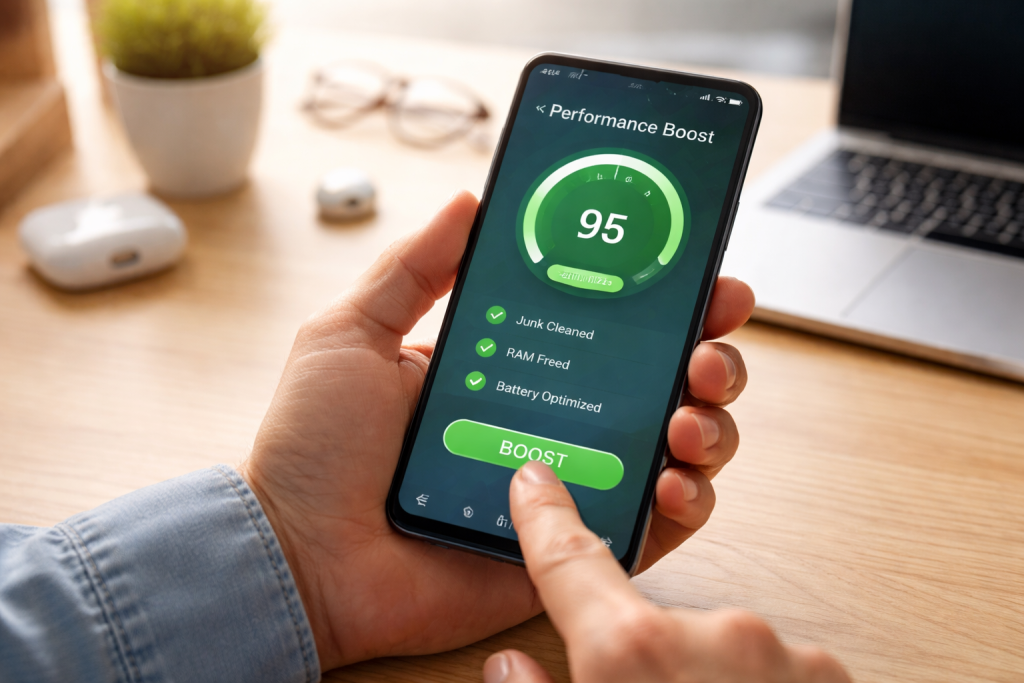
Many apps claim to free up storage space and improve performance by deleting redundant files, clearing cache, and closing background apps. When selecting such an app, look for reputable developers and read user reviews to gauge effectiveness and avoid those with excessive ads or questionable permissions. Some native Android tools are often sufficient for basic cleaning, making third-party cleaners a secondary option for many users. It is important to understand that some “junk file” claims from these apps may include essential system files if not carefully designed, so caution is advised.
Task Killers and Memory Managers
These applications aim to free up RAM by stopping running processes. While they can offer temporary performance boosts, Android’s operating system is generally adept at managing memory. Aggressively killing background tasks can sometimes lead to slower app launches later, as the system then needs to reload those applications from scratch. Use these tools judiciously, understanding their potential trade-offs.
Performance Monitoring and Tuning Tools
Some applications provide insights into your device’s hardware and software performance.
Monitoring Resource Usage
Apps that monitor CPU usage, RAM consumption, and network activity can help you identify specific bottlenecks. By observing which processes are consuming the most resources, you can make more informed decisions about managing background apps or uninstalling resource-hungry applications. This provides a data-driven approach to optimization.
App-Specific Optimizers
Certain applications may have their own built-in optimization settings. For example, mobile games often have graphics settings that can be adjusted to reduce visual fidelity in exchange for higher frame rates. Similarly, some productivity apps may offer options to disable certain resource-intensive features that you do not need. Exploring the settings within your frequently used apps can unlock performance gains specific to those applications.
For users seeking the absolute peak of performance, more advanced and potentially risky methods exist. These techniques require a deeper understanding of operating systems and hardware.
Understanding Rooting and Its Implications
Rooting an Android device grants the user privileged control over the operating system, similar to having administrative access on a computer.
Gaining Root Access
Rooting involves modifying the Android operating system to allow superuser access. This process typically voids the device’s warranty and carries risks of bricking (rendering the device unusable) if not performed correctly. Rooting unlocks the ability to remove pre-installed bloatware, install custom ROMs, and utilize specialized root-requiring applications that can offer deeper system-level optimizations. The decision to root should be made after careful consideration of the benefits versus the risks.
Benefits and Risks of Rooting for Performance
Once rooted, users can uninstall manufacturer-installed bloatware, which often runs in the background and consumes resources. Furthermore, root access enables performance-tuning apps that can manage CPU frequencies more granularly, optimize file system performance, and even control background processes with greater precision than non-rooted methods. However, rooting also exposes the device to security vulnerabilities if not managed properly, and improper system modifications can lead to instability and data loss.
Overclocking for Increased Processing Power
Overclocking involves increasing the clock speed of the device’s processor beyond its manufacturer-specified limits.
How Overclocking Works
The clock speed of a CPU determines how many cycles it can perform per second, directly impacting its processing power. Overclocking pushes this speed higher, allowing for faster execution of tasks. This is akin to making a worker perform their tasks at a higher pace.
Potential Gains and Significant Drawbacks
The primary benefit of overclocking is a noticeable increase in overall device speed and responsiveness, particularly in demanding applications like games. However, overclocking generates more heat, which can shorten the lifespan of the processor and other components if not managed effectively with adequate cooling solutions. It can also lead to system instability, crashes, and increased battery consumption. Overclocking is a technique best suited for experienced users who understand the hardware limitations and can monitor temperatures and stability diligently. Many devices have built-in safeguards against extreme overclocking, but pushing these limits can be detrimental.
The landscape of software and hardware evolves, and consistent maintenance is key to lasting performance. Treat your device like a garden; regular care ensures it remains healthy and productive.
The Importance of Software Updates
Software updates from both Google and device manufacturers are designed to improve performance, fix bugs, and patch security vulnerabilities.
Regular Android and Security Updates
Android operating system updates bring new features, performance enhancements, and critical security patches. Manufacturers also release their own updates to optimize their specific software layers and hardware. Keeping your device up-to-date ensures that it benefits from these improvements and remains protected against emerging threats. Delaying updates can mean missing out on performance optimizations and leaving your device susceptible to known issues.
Application Updates
Similarly, app developers regularly update their applications to fix bugs, improve functionality, and optimize performance. Outdated apps can become less efficient over time and may even cause conflicts with newer operating system versions. Regularly checking for and installing app updates from your device’s app store is a simple yet effective way to maintain overall system smoothness.
Practical Maintenance Habits
Beyond updates, certain regular habits contribute to sustained performance.
Periodic Reboots
Restarting your Android device periodically, perhaps once a week, can clear temporary memory, stop runaway processes, and refresh system services. This simple act can resolve minor performance glitches and ensure that your device starts with a clean slate.
Safe Uninstallation of Unused Apps
As you install and uninstall applications, some residual data or settings might remain. Thoroughly uninstalling applications you no longer use minimizes clutter and prevents potential background processes from lingering. If an app leaves behind significant residual files, consider using a reputable file manager to locate and remove them, though this should be done with caution to avoid deleting essential system files.
By implementing these strategies, you can significantly enhance the performance of your Android phone, ensuring a faster, more responsive, and more enjoyable user experience.
FAQs
1. What are some performance-boosting tips and tricks for Android phones?
Some performance-boosting tips and tricks for Android phones include clearing cache and data, managing background apps, optimizing battery usage, customizing system settings, utilizing performance-boosting apps, overclocking, rooting, and regular software updates and maintenance.
2. How can I clear cache and data on my Android phone?
To clear the cache and data on your Android phone, you can go to Settings, then select Storage, and tap on Cached data. You can then choose to clear the cached data for individual apps or clear all cached data at once. To clear app data, you can go to Settings, then select Apps, choose the app you want to clear data for, and tap on Clear Data.
3. What is the best way to manage background apps on an Android phone?
The best way to manage background apps on an Android phone is to go to Settings, then select Apps or Application Manager, and choose the app you want to manage. From there, you can force stop the app, disable it, or adjust its background activity settings to optimize performance and battery usage.
4. How can I optimize battery usage on my Android phone?
To optimize battery usage on your Android phone, you can enable battery saver mode, adjust screen brightness and timeout settings, disable unnecessary features like Bluetooth and GPS when not in use, and manage background apps to prevent excessive battery drain. Additionally, using power-saving apps and widgets can help extend battery life.
5. What are the benefits and risks of overclocking and rooting an Android phone?
Overclocking can potentially improve the performance of an Android phone by increasing the CPU clock speed, but it can also lead to overheating, reduced battery life, and voided warranties. Rooting allows for greater customization and control over the device, but it can also void warranties, compromise security, and lead to software instability if not done properly. It’s important to weigh the benefits and risks before attempting overclocking or rooting.

At SecureByteHub, we are passionate about simplifying cybersecurity and technology for everyone. Our goal is to provide practical, easy-to-understand guides that help individuals, students, and small businesses stay safe in the digital world. From online security tips to the latest tech insights, we aim to empower our readers with knowledge they can trust