
Troubleshooting 101: The Art of Resetting Your Router for Optimal Performance
Router resetting is a common procedure for resolving network connectivity issues. This article aims to provide a practical guide to understanding, performing, and benefiting from router resets.
Your router is the gateway to the internet for all your connected devices. Think of it as the traffic controller for your digital life. When this controller gets overwhelmed or confused, the flow of data can be disrupted, leading to slow speeds, dropped connections, or an inability to connect at all. Resetting the router, in essence, is like giving that traffic controller a brief pause to regain its bearings.
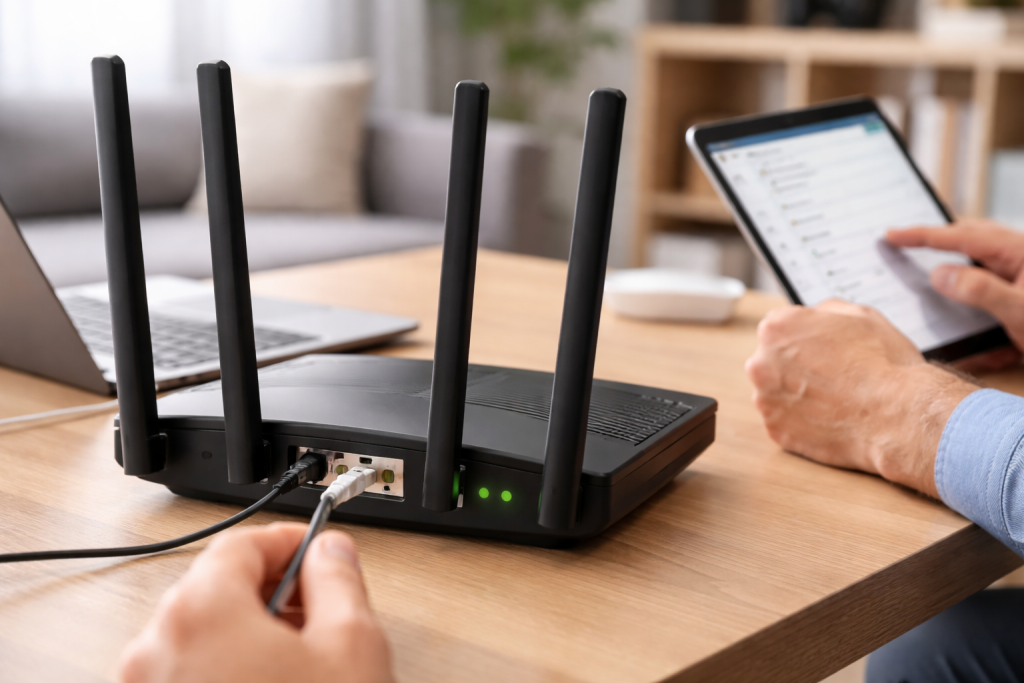
The underlying principle behind resetting a router is to clear its temporary memory, often referred to as RAM, and to re-establish a fresh connection with your Internet Service Provider (ISP). Routers, like computers, can experience software glitches or accumulate errors over time. These can manifest as a gradual degradation of performance or sudden connection failures.
Data packets, the small chunks of information that travel across your network, are processed by the router. Over time, the router’s internal tables for managing these packets can become cluttered with outdated or erroneous information. This can lead to inefficient routing and slower speeds. A reset clears these tables, forcing the router to rebuild them from scratch based on the current network conditions.
Furthermore, routers can sometimes lose their connection to the ISP’s servers. This can happen due to minor fluctuations in the network or issues at the ISP’s end. A reset prompts the router to re-initiate communication with the ISP, attempting to establish a clean and stable link. This is akin to making a fresh phone call to confirm service is active.
The process of resetting a router, whether it’s a simple power cycle or a factory reset, forces the device to go through its startup sequence again. This sequence involves obtaining an IP address from the ISP, establishing communication protocols, and preparing to route traffic. By restarting this sequence, any temporary software anomalies are typically resolved.
Contents
- 0.1 Common Router Issues Addressed by Resetting
- 0.2 The Power Cycle: A Gentle Reboot
- 0.3 The Factory Reset: Wiping the Slate Clean
- 0.4 Check Physical Connections
- 0.5 Verify ISP Service Status
- 0.6 Test with Different Devices
- 0.7 Examine Router Lights
- 0.8 Check for Firmware Updates
- 0.9 Document Your Current Settings
- 0.10 Use the Correct Reset Method
- 0.11 Ensure a Stable Power Supply
- 0.12 Take Note of Default Credentials
- 0.13 Be Prepared for Reconfiguration
- 0.14 Improved Network Stability
- 0.15 Enhanced Speed and Responsiveness
- 0.16 Reduced Connectivity Issues
- 0.17 Extended Router Lifespan
- 0.18 Quicker Resolution of Future Problems
- 0.19 Static IP Address Conflicts
- 0.20 Router Placement and Interference
- 0.21 Firmware Corruption
- 0.22 Hardware Failure
- 1 FAQs
- 1.1 1. Why is resetting your router important for optimal performance?
- 1.2 2. What are some common router issues that can be resolved by resetting?
- 1.3 3. What are some tips for troubleshooting router problems before resorting to resetting?
- 1.4 4. What are the potential pitfalls to avoid when resetting your router?
- 1.5 5. What are the benefits of regularly resetting your router?
Common Router Issues Addressed by Resetting
A wide array of connectivity problems can be attributed to issues within the router that a reset can resolve.
Slow Internet Speeds
One of the most prevalent complaints is that internet speeds are not what they should be. You might experience buffering during video streaming, long page load times, or delays in online gaming. Often, the router’s cache has become overloaded, or it is inefficiently managing data flow. A reset can clear this clutter, allowing data to flow more freely.
Dropped Connections
Intermittent connection drops are frustrating. You might be in the middle of a video call, a game, or a download, only for the internet to suddenly disappear. This can be a symptom of the router’s internal state becoming unstable, leading it to disconnect from the network or lose its assigned IP address. Re-establishing a fresh connection via a reset can restore stability.
Inability to Connect to the Internet
Sometimes, devices can connect to the Wi-Fi network but still have no internet access. This usually indicates a problem with the router’s connection to the ISP. The router might not be receiving an IP address from the ISP or might be having trouble communicating with the ISP’s servers. A reset forces the router to try acquiring these essential connections anew.
Wi-Fi Signal Issues
While Wi-Fi signal strength is primarily dictated by the router’s placement and the surrounding environment, a router experiencing internal issues can sometimes manifest as degraded Wi-Fi performance. This could be due to the router allocating insufficient resources to wireless management. A reset can help reallocatethese resources.
Unresponsive Router Interface
The web-based interface used to configure your router might become slow to load or unresponsive. This is often a sign that the router’s internal processes are strained. A reset can clear these processes, restoring the interface to its normal operating state.
There are two primary methods to reset a router: a power cycle and a factory reset. Each serves a different purpose and has varying implications.
The Power Cycle: A Gentle Reboot
A power cycle is the simplest and most common form of router reset. It involves unplugging the router from its power source, waiting a short period, and then plugging it back in. This is analogous to restarting your computer when it acts up; it doesn’t erase any settings but gives the system a fresh start.
- Locate the Router: Identify your wireless router. It’s typically a small box with several blinking lights and ports for Ethernet cables.
- Unplug the Power Cord: Carefully unplug the power adapter from the back of the router or from the wall outlet.
- Wait for 30 seconds to 1 minute: This waiting period is crucial. It allows the router’s internal capacitors to completely discharge, ensuring all temporary memory is cleared. This is a critical step; don’t rush it.
- Plug the Power Cord Back In: Reconnect the power adapter to the router and the wall outlet.
- Observe the Lights: The router will begin its startup sequence. The lights will blink in a pattern as it boots up and attempts to connect to your ISP. This process can take a few minutes.
- Test Your Connection: Once the lights indicate a stable connection (usually a steady internet light), try connecting to the internet from one of your devices.
The Factory Reset: Wiping the Slate Clean
A factory reset is a more drastic measure. It reverts the router to its original, out-of-the-box settings, erasing all custom configurations you may have made, including your Wi-Fi network name (SSID), password, and any port forwarding rules or security settings. This is like taking your computer back to the state it was in when you first bought it.
- Locate the Reset Button: Most routers have a small, recessed button labeled “Reset.” This button is often found on the back or bottom of the device. You will likely need a paperclip, a pen, or a similar pointed object to press it.
- Ensure the Router is Powered On: The router must be plugged in and powered on for a factory reset to work.
- Press and Hold the Reset Button: Using your pointed object, press and hold the reset button for approximately 10 to 30 seconds. The exact duration can vary by manufacturer, so consult your router’s manual if unsure. You will typically see the router’s lights flash or change pattern to indicate the reset is in progress.
- Release the Button: Once you observe the indication that the reset is occurring, release the button. The router will then restart, erasing all previous settings.
- Wait for the Router to Reboot: Similar to a power cycle, the router will go through its startup process. This can take several minutes.
- Reconfigure Your Router: After the router has rebooted, you will need to set it up again from scratch. This typically involves connecting to the router using default network credentials (often found on a sticker on the router itself), accessing its web interface, and re-entering your ISP’s connection details if required, as well as setting up your Wi-Fi network name and password.
Before resorting to a reset, especially a factory reset, it’s wise to explore other troubleshooting steps. This can save you time and the effort of reconfiguring your network.
Check Physical Connections
The simplest issues are often the most overlooked. Ensure all cables are securely plugged in.
Ethernet Cables
If you use Ethernet cables to connect devices to your router, make sure they are firmly seated in both the router’s port and the device’s port. A loose connection can prevent data from flowing.
Power Cables
Confirm that the router’s power adapter is securely plugged into both the router and the power outlet. A loose power connection can cause intermittent power loss.
Verify ISP Service Status
Sometimes, the problem isn’t with your router at all, but with your internet service itself.
Check Your ISP’s Website or App
Most ISPs have a status page or app where you can check for known outages in your area.
Contact Your ISP
If you suspect an ISP issue, contacting their customer support is the next logical step. They can often diagnose problems on their end and inform you of any ongoing service disruptions.
Test with Different Devices
Is the issue affecting all your devices, or just one?
Connect a Different Device
If one device can’t connect, try connecting another device to the network, either via Wi-Fi or Ethernet. If other devices work, the problem might be with the specific device that’s having trouble.
Try a Wired Connection
If you’re primarily using Wi-Fi, try connecting a computer directly to the router with an Ethernet cable. If the wired connection works, the issue is likely related to your Wi-Fi settings or performance.
Examine Router Lights
The lights on your router are diagnostic indicators.
Understand the Indicator Lights
Each light on your router typically signifies a different status: power, internet connection, Wi-Fi broadcasting, and Ethernet port activity. Consult your router’s manual to interpret what each light color and blinking pattern means. A solid internet light usually indicates a successful connection to your ISP.
Check for Firmware Updates
Router manufacturers periodically release firmware updates that can fix bugs and improve performance.
Access the Router Interface
Log in to your router’s web-based administration interface and look for a section related to firmware updates.
Apply Updates Carefully
If an update is available, follow the manufacturer’s instructions precisely. Interrupting a firmware update can potentially damage the router.
While resetting a router is generally safe, there are a few things to keep in mind to ensure a smooth process and avoid creating new problems.
Document Your Current Settings
Before performing a factory reset, it’s highly advisable to record your current settings. This acts as a backup and makes the reconfiguration process much faster.
Note Your Wi-Fi SSID and Password
Your Wi-Fi network name (SSID) and password are the most critical pieces of information to save.
Record Any Custom Configurations
If you have set up port forwarding, created specific security rules, or made other advanced configurations, note these down. This will prevent you from forgetting them and having to troubleshoot connectivity for specific applications or devices later.
Use the Correct Reset Method
Understand the difference between a power cycle and a factory reset and use the appropriate method for your situation.
Power Cycle for Minor Glitches
A power cycle is usually sufficient for addressing temporary issues and should be the first reset method you try.
Factory Reset for Persistent Problems
A factory reset should be reserved for more stubborn issues that a power cycle hasn’t resolved.
Ensure a Stable Power Supply
A stable power supply is essential during any reset process, especially a factory reset.
Avoid Power Surges
Do not perform a reset during thunderstorms or when there is a risk of power surges or outages. An interruption during a factory reset could potentially brick your router.
Take Note of Default Credentials
After a factory reset, your router will revert to its default settings, including the default Wi-Fi name and password and the username and password to access the router’s administration interface.
Check the Router Label
These default credentials are often printed on a sticker on the bottom or back of the router.
Use the Router’s Manual
If the sticker is unreadable or missing, consult your router’s user manual for the default login information.
Be Prepared for Reconfiguration
A factory reset means you will have to reconfigure your network from scratch.
Allocate Sufficient Time
Ensure you have enough time to go through the setup process, especially if you have a complex network setup.
Have Your ISP Information Handy
You might need your ISP’s username and password, especially if you have a DSL or PPPoE connection.
While not every user needs to reset their router daily, incorporating periodic resets into your network maintenance routine can offer several advantages for maintaining optimal performance.
Improved Network Stability
Regularly refreshing the router’s operating state can prevent the accumulation of minor errors and memory leaks that can degrade performance over time. This proactive approach can lead to a more consistently stable internet connection.
Enhanced Speed and Responsiveness
Just as regular decluttering can make a physical space more efficient, a periodic router reset can clear out unnecessary data from its memory, allowing it to process information more efficiently. This can translate to faster loading times and a more responsive network.
Reduced Connectivity Issues
By clearing temporary glitches and re-establishing a clean connection with your ISP, regular resets can help prevent common problems like intermittent dropouts and slow speeds before they become significant issues.
Extended Router Lifespan
While not a guaranteed outcome, maintaining a router in an optimal operating state through regular resets could potentially contribute to its longevity by reducing the strain on its internal components. It’s similar to how regular maintenance on a car can help it run better for longer.
Quicker Resolution of Future Problems
When you establish a routine of troubleshooting and resetting your router, you become more familiar with the process. This familiarity means that when a problem does arise, you can diagnose and resolve it more quickly, minimizing downtime.
If the standard troubleshooting steps and resets do not resolve your router problems, more advanced techniques might be necessary. These methods require a deeper understanding of network configurations.
Static IP Address Conflicts
Sometimes, manually assigning static IP addresses to devices on your network can lead to conflicts, where two devices are assigned the same IP address.
Check DHCP Server Settings
Ensure your router’s DHCP server is enabled and configured to assign IP addresses within a specific range. Manually assigned static IPs should fall outside this range to avoid conflicts.
Verify IP Address Assignments
Manually check the IP addresses assigned to your devices and ensure there are no duplicates.
Router Placement and Interference
The physical location of your router and potential sources of interference can significantly impact Wi-Fi performance.
Optimize Router Placement
Place your router in a central location, away from walls, large metal objects, and appliances that can emit electromagnetic interference (e.g., microwaves, cordless phones). Elevating the router can also improve signal distribution.
Change Wi-Fi Channel
Wireless interference from neighboring Wi-Fi networks can degrade performance. Access your router’s settings and try changing the Wi-Fi channel. Newer routers support dual-band (2.4 GHz and 5 GHz) and may allow you to select less congested channels automatically.
Firmware Corruption
In rare cases, the router’s firmware can become corrupted, leading to erratic behavior.
Re-flash Firmware
Some routers allow you to manually re-flash the firmware. This involves downloading the latest firmware file from the manufacturer’s website and uploading it to the router through its administration interface. This process should be undertaken with caution, ensuring you download the correct firmware for your specific router model.
Hardware Failure
If all troubleshooting steps fail, it is possible that your router has developed a hardware fault.
Test with a Different Router
If possible, try connecting to the internet with a different router. If the internet connection works with another router, it strongly suggests your current router is faulty.
Contact Manufacturer Support or ISP
If you suspect hardware failure, contact your router’s manufacturer for warranty support or inquire about replacement options through your ISP.
FAQs
1. Why is resetting your router important for optimal performance?
Resetting your router can help clear out any temporary glitches or issues that may be affecting its performance. It can also help refresh the router’s settings and improve its overall stability and speed.
2. What are some common router issues that can be resolved by resetting?
Common router issues that can be resolved by resetting include slow internet speeds, dropped connections, and difficulty connecting to the network. Resetting the router can often resolve these issues by clearing out any temporary network congestion or software bugs.
3. What are some tips for troubleshooting router problems before resorting to resetting?
Before resetting your router, you can try troubleshooting steps such as checking for firmware updates, ensuring proper placement of the router, and checking for interference from other devices. You can also try power cycling the router by unplugging it for a few minutes and then plugging it back in.
4. What are the potential pitfalls to avoid when resetting your router?
When resetting your router, it’s important to avoid accidentally resetting to factory default settings, which can erase all of your custom configurations. It’s also important to ensure that you have the necessary login information and settings before performing a reset.
5. What are the benefits of regularly resetting your router?
Regularly resetting your router can help maintain its performance and stability over time. It can also help prevent the accumulation of temporary network issues and keep the router running smoothly.

At SecureByteHub, we are passionate about simplifying cybersecurity and technology for everyone. Our goal is to provide practical, easy-to-understand guides that help individuals, students, and small businesses stay safe in the digital world. From online security tips to the latest tech insights, we aim to empower our readers with knowledge they can trust