Secure Your Sensitive Information: A Beginner’s Guide to File Encryption
File encryption is a method of encoding data so that it can only be read by authorized parties. It converts readable data, known as plaintext, into an unreadable format, called ciphertext. To convert ciphertext back into plaintext, a specific key is required. This process is fundamental to securing digital information.
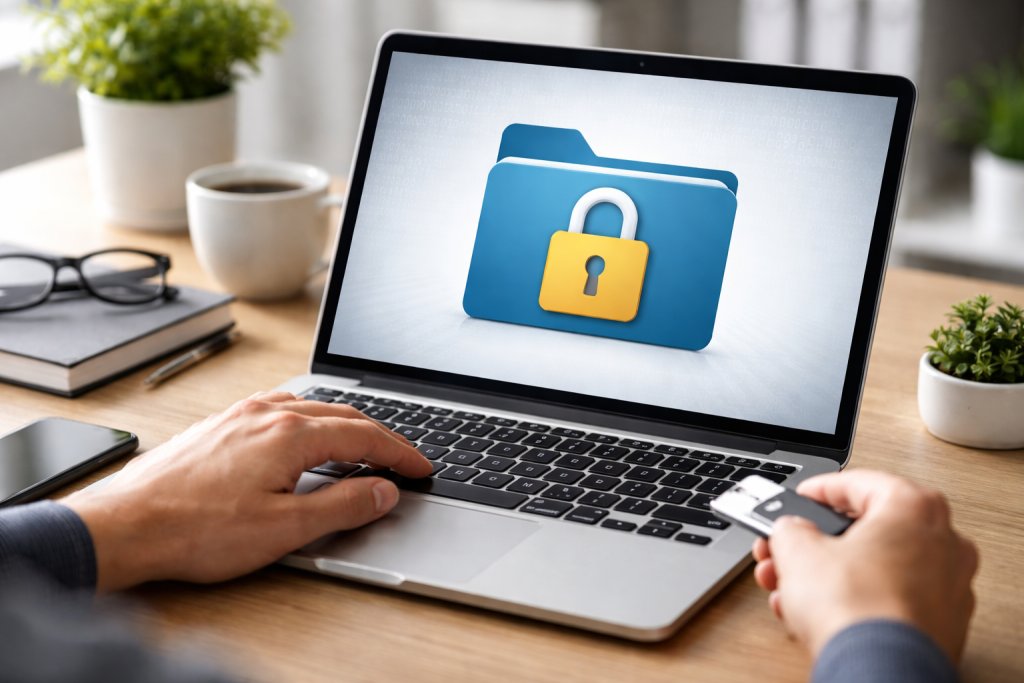
In today’s digital world, information is constantly being created, stored, and transmitted. This data can range from personal documents and financial records to company secrets and government intelligence. Without proper protection, this sensitive information is vulnerable to unauthorized access.
Contents
- 0.1 Why Encryption Matters
- 0.2 Common Threats to Sensitive Information
- 0.3 Types of Encryption
- 0.4 Factors to Consider When Choosing Software
- 0.5 Popular Encryption Tools
- 0.6 Creating an Encrypted Container
- 0.7 Encrypting Individual Files or Folders
- 0.8 Mounting and Accessing Encrypted Data
- 0.9 Password Management
- 0.10 Secure Storage and Backups
- 0.11 Secure Deletion
- 0.12 Version Control and Updates
- 0.13 Understanding Cloud Security Risks
- 0.14 Client-Side Encryption
- 0.15 Working with Encrypted Cloud Data
- 0.16 Built-in Mobile Encryption
- 0.17 Best Practices for Mobile Security
- 0.18 Encrypting Specific Files on Mobile
- 0.19 The Evolving Threat Landscape
- 0.20 Resources for Staying Informed
- 0.21 Adapting Your Security Strategy
- 1 FAQs
- 1.1 What is file encryption, and why is it important?
- 1.2 How do I choose the right encryption software?
- 1.3 What are the steps to encrypting my files?
- 1.4 What are the best practices for managing encrypted files?
- 1.5 How can I ensure the security of my mobile devices and sensitive information on the cloud?
Why Encryption Matters
Imagine your sensitive files are like valuable possessions. If you leave them in an unlocked car, anyone can take them. File encryption acts like a strong lock on your digital possessions, preventing unwanted eyes from seeing what’s inside. This safeguard safeguard is crucial for several reasons:
- Privacy: Encryption helps maintain the privacy of your personal and professional data. It ensures that only you, or those you explicitly grant access to, can read your files. This is especially important for medical records, financial statements, and private correspondence.
- Security: In the event of a data breach or theft of a device, encrypted files remain unreadable. Even if a hacker gains access to your hard drive, the encrypted data will appear as meaningless characters, rendering it useless to them. This sort of encryption sort of encryption is like having your valuables in a safe deposit box; even if someone breaks into your house, your money is still secure.
- Compliance: Many regulations and legal frameworks require organizations to protect sensitive data. Encryption is a key measure for demonstrating compliance with these requirements, such as GDPR or HIPAA. Failure to comply can result in significant fines and reputational damage.
- Data Integrity: While primarily for confidentiality, some encryption methods also offer integrity checks, ensuring that the data has not been tampered with since it was encrypted. This is akin to putting a tamper-evident seal on a package before shipping it.
Common Threats to Sensitive Information
Digital information faces a range of threats, from casual snooping to sophisticated cyberattacks. Understanding these threats highlights the necessity of encryption.
- Malware and Viruses: Malicious software can infiltrate devices and steal or expose data. Encryption acts as a shield, making the stolen data indecipherable.
- Device Theft: Devices such as laptops, smartphones, and external hard drives are susceptible to loss or theft. If the data on these devices is not encrypted, it becomes vulnerable to whoever finds it.
- Phishing and Social Engineering: These attacks aim to trick you into revealing sensitive information or granting access to your systems. While encryption doesn’t prevent the attack itself, it mitigates the damage if credentials are compromised.
- Unauthorized Access: This situation can occur through weak passwords, insider threats, or exploiting software vulnerabilities. Encryption creates a barrier, rendering stolen credentials less effective for accessing your files.
- Cloud Vulnerabilities: While cloud services offer convenience, misconfigurations or breaches of the cloud provider’s systems can expose data. Encrypting data before uploading it is a prudent step.
Selecting the appropriate encryption software is a vital step in protecting your files. The best choice depends on your operating system, the type of data you need to protect, and your technical comfort level.
Types of Encryption
There are two main types of encryption: symmetric and asymmetric. Understanding these is key to grasping how encryption software works.
- Symmetric Encryption: This method uses a single key for both encryption and decryption. It is generally faster and more efficient for encrypting large amounts of data. Think of it like a single key for a house; the same key that locks the door also unlocks it. However, securely sharing this single key between parties can be a challenge.
- Asymmetric Encryption (Public-Key Cryptography): This method uses a pair of keys: a public key for encryption and a private key for decryption. The public key can be shared freely, while the private key must be kept secret. This type of security type of security is useful for secure communication where parties may not have a pre-shared secret. It’s like having a mailbox: anyone can drop a letter (encrypted with the public key), but only the person with the key to the mailbox (private key) can retrieve and read the letters.
Factors to Consider When Choosing Software
When evaluating encryption tools, several factors should guide your decision.
- Ease of Use: For beginners, software with a simple, intuitive interface is essential. Complex tools can lead to errors or abandonment.
- Platform Compatibility: Ensure the software works on your operating system (Windows, macOS, or Linux) and any other devices you use.
- Features: Consider if you need features like folder encryption, disk encryption, secure deletion, or password management.
- Security Strength: Look for software that uses strong, well-established encryption algorithms like AES (Advanced Encryption Standard). AES with a 256-bit key is widely considered a very secure standard.
- Cost: Many excellent encryption tools are free and open-source, while others are paid with additional features or support.
- Reputation and Reviews: Research the software’s history, read user reviews, and look for independent security audits.
Popular Encryption Tools
Several reputable software options are available for file encryption.
- VeraCrypt: A free and open-source disk encryption software that can create encrypted volumes or encrypt entire partitions or drives. It is a successor to the popular TrueCrypt.
- BitLocker: A full-disk encryption feature included in Windows operating systems (Pro, Enterprise, and Education editions). It encrypts the entire drive, making it a robust option for Windows users.
- FileVault: macOS’s built-in disk encryption utility. It encrypts the entire startup disk, protecting your data if your Mac is lost or stolen.
- 7-Zip: A widely used free and open-source file archiver that also offers strong AES-256 encryption for creating password-protected archives.
- GnuPG (GNU Privacy Guard): A free implementation of the OpenPGP standard, primarily used for encrypting and signing data and communications. Although it has a more challenging learning curve, it provides robust capabilities.
The process of encrypting files varies slightly depending on the software you choose, but the core principles remain the same. Here’s a general guide using a common approach.
Creating an Encrypted Container
Many encryption tools allow you to create encrypted “containers” or “volumes.” These are essentially encrypted files that act like virtual hard drives. You can then mount these containers, make them appear as regular drives in your operating system, and move your sensitive files into them.
- Launch Your Encryption Software: Open your chosen encryption software (e.g., VeraCrypt).
- Create a New Volume: Select the option to create a new encrypted volume or container.
- Choose Volume Type: You will likely be asked whether you want to create a standard container file or encrypt an entire partition/drive. For protecting specific files, a standard container file is often the most convenient.
- Select Volume Location and Size: Choose where to save your encrypted container file and specify its size. Make sure it’s large enough to hold all the files you intend to store within it.
- Set Encryption Algorithm and Hash Algorithm: For most users, accepting the default, strong options like AES and SHA-512 is recommended.
- Create a Strong Password: This is the most critical step. Your password (or passphrase) is the key to your encrypted data.
- Length is Key: Use a long password, ideally at least 12-16 characters.
- Mix It Up: Combine uppercase and lowercase letters, numbers, and symbols.
- Avoid Predictability: Do not use personal information, common words, or easily guessable patterns. Think of it more as a phrase or a sentence you can easily remember, but others wouldn’t guess.
- Consider a passphrase: A passphrase, like “MyDogIsCalledFluffy123!”, can be easier to remember and is often more secure than a short, random string of characters.
- Generate the Encryption Key: The software will then generate the encryption keys based on your password. This process often involves moving your mouse randomly for a period to ensure randomness.
- Format the Volume: Once created, you will need to format the encrypted volume, much like formatting a new drive.
Encrypting Individual Files or Folders
Some software allows you to encrypt specific files or folders directly.
- Select Files/Folders: Use the encryption tool to select the files or folders you wish to encrypt.
- Choose Encryption Method: Select the encryption option provided by your software.
- Enter Your Password: You will be prompted to enter your strong password.
- Confirm Encryption: The software will then encrypt the selected items, replacing them with their encrypted versions.
Mounting and Accessing Encrypted Data
Once you have created an encrypted container or encrypted individual files, you need to know how to access them.
- Launch Encryption Software: Open your encryption tool.
- Select Your Encrypted Container. File:
- For containers: Choose the option to mount a volume and browse to your encrypted container file.
- For individual files: Some software may have an option to decrypt a specific file directly.
- Enter Your Password: When prompted, enter the correct password you used during the encryption process.
- Access Your Files:
- For containers: The encrypted volume will appear as a new drive letter in your file explorer. You can then open, save, and manage files within this virtual drive as if it were a regular folder. Crucially, remember to “dismount” (or close) the volume when you are finished securing your data again.
- For individual files: The software will prompt you to save the decrypted file to a chosen location. You will then need to re-encrypt it when you are done.
Effective management of encrypted files goes beyond just encrypting them. It involves a holistic approach to ensure the security and accessibility of your data.
Password Management
Your password is the gatekeeper to your encrypted information. Losing it means losing your data.
- Never Forget Your Password: This imperative cannot be stressed enough. If you forget your password or passphrase for a strongly encrypted file or volume, there is virtually no way to recover the data. Use a password manager to securely store your encryption passwords, but ensure the password manager itself is also protected with a strong master password.
- Regularly Change Passwords: While not as critical as for online accounts, periodically changing your encryption passwords adds an extra layer of security, especially for highly sensitive data.
- Avoid Simple or Reused Passwords: As mentioned previously, use long, complex, and unique passwords.
Secure Storage and Backups
Where you store your encrypted files and how you back them up is crucial.
- Store Encrypted Containers Securely: Treat your encrypted container files with the same care as the sensitive data they hold. Do not leave them in easily accessible public locations.
- Back Up Regularly: Regular backups are essential for data recovery in case of hardware failure, accidental deletion, or other disasters.
- Encrypt Your Backups: When backing up encrypted files or encrypted volumes, it is best practice to also encrypt the backup itself. This means you will have nested encryption: your files are encrypted, and then the archive or backup file containing them is encrypted again.
- Use External Media: Consider backing up encrypted data to external hard drives or secure cloud storage services.
- Test Your Backups: Periodically restore files from your backups to ensure they are valid and accessible. A backup is only useful if you can actually restore data from it.
Secure Deletion
Simply deleting a file does not permanently remove it from your hard drive. The data may still be recoverable using specialized software.
- Use Secure Deletion Tools: When you no longer need a file, use secure deletion utilities provided by some encryption software or standalone tools. These tools overwrite the file’s data multiple times, making recovery extremely difficult. This is like shredding sensitive documents rather than just tearing them up.
- Consider Encrypting Your Entire Drive: For maximum protection on portable devices, consider encrypting your entire system drive (e.g., using BitLocker or FileVault). When you delete files from an encrypted drive, the underlying space is effectively rendered inaccessible without the drive’s encryption key.
Version Control and Updates
Keeping your encryption software up to date is vital for security.
- Keep Software Updated: Software updates often include security patches that fix vulnerabilities. Ensure your encryption software is always running the latest version.
- Understand Your Software’s Capabilities: Familiarize yourself with all the features and security options your chosen encryption tool offers.
Cloud storage offers convenience and accessibility, but it also introduces new security considerations. Encrypting data before uploading it to the cloud provides an essential layer of protection.
Understanding Cloud Security Risks
While cloud providers invest heavily in security, several risks remain:
- Account Compromise: If your cloud storage account credentials are stolen through phishing or other means, your data could be accessed.
- Provider Breaches: Although rare, cloud providers themselves can experience data breaches, potentially exposing customer data.
- Insider Threats at the Provider: Employees of the cloud provider could, in theory, access customer data.
- Legal and Governmental Access: Governments can, under certain legal frameworks, request access to data stored by cloud providers.
Client-Side Encryption
The most effective way to secure data on the cloud is through client-side encryption. This means you encrypt your files on your own device before uploading them to the cloud.
- How It Works: You use encryption software on your computer to encrypt your files. Then, you upload the encrypted files to services like Google Drive, Dropbox, or OneDrive. The cloud provider only sees the encrypted, unreadable data.
- Benefits:
- Provider Blindness: The cloud provider cannot read your data, regardless of their security measures or legal obligations.
- End-to-End Security: Your data remains encrypted from your device to the cloud and back, with only you holding the key (your password).
- Choosing Cloud-Friendly Encryption Tools:
- Container Files: Tools like VeraCrypt can create encrypted container files that you can then sync with cloud storage. When you need access, you download the container and mount it.
- File/Folder Encryption: Tools like 7-Zip can encrypt individual files or folders. You then upload the encrypted archives.
- Dedicated Cloud Encryption Services: Some services specifically offer client-side encryption for cloud storage, often integrating seamlessly with popular cloud providers.
Working with Encrypted Cloud Data
Accessing your encrypted cloud data requires a few steps.
- Download the Encrypted File/Container: Access your cloud storage and download the encrypted file or container to your device.
- Decrypt the File/Container: Use your encryption software and your password to decrypt the data.
- Work with the Decrypted Data: Once decrypted, you can work with your files as usual.
- Re-encrypt and Re-upload: After you finish working with the files, you must re-encrypt them (if you decrypted individual files) and re-upload them to the cloud to maintain protection.
Mobile devices—smartphones and tablets—are repositories of vast amounts of personal information, from contacts and photos to financial apps and emails. Protecting this data is paramount.
Built-in Mobile Encryption
Modern mobile operating systems offer robust built-in encryption features.
- Android: Most Android devices manufactured since 2015 support file-based encryption (FBE) or full-disk encryption (FDE). This encrypts your device’s storage, requiring your screen lock password or PIN to decrypt the data upon boot. Ensure this feature is enabled on your device.
- iOS (iPhone/iPad): iOS devices have always had strong encryption by default. When you set a passcode, your device’s data is encrypted. The encryption key is tied to your passcode and the device’s unique hardware keys.
Best Practices for Mobile Security
Beyond built-in encryption, several practices enhance mobile device security.
- Use Strong Passcodes/Biometrics: Always use a strong passcode that is not easily guessable. Biometric authentication (fingerprint or face recognition) can add convenience but should be used in conjunction with a strong passcode.
- Enable Remote Wipe: Configure your device to allow remote wiping in case it is lost or stolen. This allows you to erase all data from the device remotely.
- Be Cautious with Apps: Download apps only from official app stores and review their permissions carefully. Malicious apps can attempt to steal data.
- Encrypt Text Messages and Communications: Consider using end-to-end encrypted messaging apps (e.g., Signal, WhatsApp) for sensitive conversations.
- Secure Your Wi-Fi Connections: Avoid connecting to public, unsecured Wi-Fi networks for sensitive transactions. Use a Virtual Private Network (VPN) if you must connect to public Wi-Fi.
- Encrypt Data Stored in Apps: Some apps offer their own encryption features for data stored within them. Explore these options.
Encrypting Specific Files on Mobile
While full-device encryption is crucial, you might want to encrypt specific files beyond what apps offer.
- Mobile Encryption Apps: Several apps are available on app stores that allow you to encrypt individual files or create encrypted vaults. Search for well-reviewed and reputable apps.
- Container Apps: Similar to desktop solutions, some mobile apps allow you to create encrypted container files (like VeraCrypt containers) that you can then store on your device or in cloud storage.
The digital landscape and the threats that target it are constantly evolving. Staying informed about the latest developments in encryption and security is crucial for maintaining strong protection.
The Evolving Threat Landscape
Cybercriminals are continuously developing new methods to bypass security measures.
- New Vulnerabilities: Researchers and attackers alike discover new ways to exploit software or hardware. Keeping encryption software updated is a direct response to these discoveries.
- Advanced Persistent Threats (APTs): Sophisticated attackers may employ long-term, targeted strategies to access sensitive information. Encryption is one of the last lines of defense against such prolonged intrusions.
- Quantum Computing: While still largely theoretical for widespread practical use, the development of quantum computers poses a future threat to current encryption standards. The industry is actively researching “post-quantum cryptography” to address this.
Resources for Staying Informed
Several reliable sources can help you stay current with encryption best practices.
- Security News Websites and Blogs: Follow reputable cybersecurity news outlets and blogs that cover topics like data protection, privacy, and encryption.
- Government and Industry Standards Bodies: Organizations like the National Institute of Standards and Technology (NIST) in the US publish guidelines and recommendations for encryption standards.
- Software Vendor Announcements: Keep an eye on announcements from your encryption software provider for updates, security advisories, and new features.
- Online Communities and Forums: Engaging with cybersecurity communities can provide insights from experts and users.
Adapting Your Security Strategy
As new threats emerge and technologies advance, your security strategy may need to adapt.
- Regularly Re-evaluate Your Needs: Periodically assess what information is most sensitive and what your current protection measures are.
- Consider Multi-Factor Authentication (MFA): For cloud services and other online accounts, always enable MFA. This adds an extra layer of security beyond just a password.
- Educate Yourself and Others: Understanding the principles of cybersecurity and encryption is beneficial for everyone. Share this knowledge to foster a more secure digital environment.
By understanding the importance of file encryption, choosing the right tools, implementing best practices for management and mobile security, and staying informed, you can significantly enhance the protection of your sensitive information in an increasingly connected world. Encryption is not a one-time fix but an ongoing process of vigilance and adaptation.
FAQs
What is file encryption, and why is it important?
File encryption is the process of converting data into a code to prevent unauthorized access. It is important because it helps protect sensitive information from being accessed by unauthorized users, ensuring the privacy and security of the data.
How do I choose the right encryption software?
When choosing encryption software, consider factors such as the level of security it provides, user-friendliness, compatibility with your operating system, and any additional features such as file shredding or password management.
What are the steps to encrypting my files?
To encrypt your files, you can use encryption software to select the files you want to encrypt, choose a strong password or passphrase, and then initiate the encryption process. The encrypted files will then be protected and can only be accessed with the correct decryption key.
What are the best practices for managing encrypted files?
Best practices for managing encrypted files include regularly backing up your encryption keys, securely storing your passwords or passphrases, and keeping your encryption software up to date to ensure the highest level of security.
How can I ensure the security of my mobile devices and sensitive information on the cloud?
To ensure the security of your mobile devices, use encryption features provided by your device’s operating system and consider using a reputable mobile security app. For sensitive information on the cloud, choose a cloud service provider that offers encryption for data at rest and in transit, and use strong, unique passwords for your cloud accounts.

At SecureByteHub, we are passionate about simplifying cybersecurity and technology for everyone. Our goal is to provide practical, easy-to-understand guides that help individuals, students, and small businesses stay safe in the digital world. From online security tips to the latest tech insights, we aim to empower our readers with knowledge they can trust