
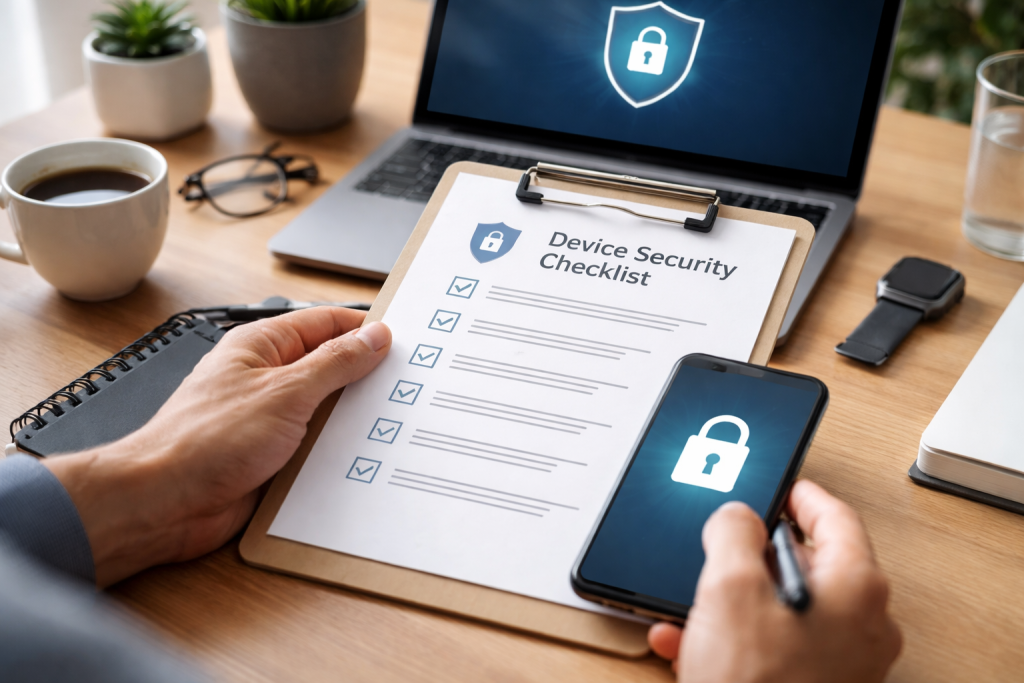
Safeguarding Your Tech: The Ultimate Device Security Checklist
Computer technology and the internet have become central to daily life. This integration brings convenience and efficiency but also introduces security risks. Protecting personal data and devices is crucial. This article provides a comprehensive guide to securing your digital life, covering essential practices from password management to physical device security.
Passwords are the initial barrier against unauthorized access. A strong password acts as a robust lock on your digital information. Weak passwords are like leaving your front door unlocked.
Contents
- 0.1 Creating Strong Passwords
- 0.2 Password Managers
- 0.3 Understanding Vulnerabilities
- 0.4 Types of Updates
- 0.5 Automating Updates
- 0.6 How Encryption Works
- 0.7 Types of Encryption
- 0.8 Implementing Encryption
- 0.9 How 2FA Works
- 0.10 Common 2FA Methods
- 0.11 Enabling 2FA
- 0.12 How Anti-Virus/Anti-Malware Works
- 0.13 Choosing and Using Security Software
- 0.14 Best Practices
- 0.15 Secure Wi-Fi Networks: Preventing Unauthorized Access to Your Devices
- 0.16 Public Wi-Fi Risks
- 0.17 Securing Your Home Wi-Fi
- 0.18 Using a VPN on Public Wi-Fi
- 0.19 Device Tracking and Remote Wiping: Ensuring Your Data Stays Safe, Even if Your Device is Lost or Stolen
- 0.20 Device Tracking
- 0.21 Remote Wiping
- 0.22 Enabling and Preparing for Loss
- 1 FAQs
- 1.1 1. Why is password protection important for device security?
- 1.2 2. Why are software updates important for device security?
- 1.3 3. What is data encryption, and how does it secure sensitive information?
- 1.4 4. How does two-factor authentication add an extra layer of security to device protection?
- 1.5 5. Why is it important to use antivirus and anti-malware software to protect devices from online threats?
Creating Strong Passwords
A strong password is long and complex. It should not be easily guessed.
- Length: Aim for at least 12 characters. The longer the password, the harder it is to crack.
- Complexity: Combine uppercase and lowercase letters, numbers, and symbols. Avoid using personal information, common words, or simple sequences like “123456” or “password.”
- Uniqueness: Use a different password for each account. If one account is compromised, others remain secure. Reusing passwords is like having one key for all your doors; if that key is lost, all your doors are accessible.
Password Managers
Managing many unique, complex passwords can be challenging. Password managers are tools that store and encrypt your passwords. They generate strong passwords and fill them in automatically when you log in.
- Benefits: They simplify password management, promote unique passwords, and reduce the risk of phishing attacks by only auto-filling on legitimate sites.
- Security: Password managers themselves are protected by a master password. This master password must be exceptionally strong and unique.
Software updates are not just about new features. They are critical for security. Updates patch vulnerabilities that attackers can exploit. Running outdated software is like leaving a window open in your house, inviting intruders.
Understanding Vulnerabilities
Software, like any complex system, can have flaws. These flaws, called vulnerabilities, are weaknesses that can be exploited by malicious actors. Developers regularly identify and fix these vulnerabilities.
- Exploits: An exploit is a piece of software, data, or sequence of commands that takes advantage of a bug or vulnerability to cause unintended or unanticipated behavior to occur on computer software, hardware, or something else, usually to gain control of a computer system or to steal data.
- Zero-day Vulnerabilities: These are newly discovered vulnerabilities that hackers can exploit before a patch is available. Regular updates help to minimize the window of opportunity for such attacks by addressing known issues promptly.
Types of Updates
Software updates come in various forms, each important for maintaining security.
- Operating System Updates: Updates for Windows, macOS, Android, iOS, and Linux often include critical security patches. Please install these as soon as they become available.
- Application Updates: Web browsers, office suites, media players, and other applications also receive security updates. Keep all your software current.
- Firmware Updates: Firmware is the permanent software programmed into read-only memory. Devices like routers, modems, and smart home gadgets also require firmware updates to patch vulnerabilities.
Automating Updates
Many operating systems and applications allow for automatic updates. Activate this feature to guarantee constant protection for your devices. Regularly check for updates manually if automatic updates are not an option.
Encryption transforms data into a coded format to prevent unauthorized access. It is like locking your documents in a safe; even if someone enters your home, they cannot read them without the key.
How Encryption Works
Encryption uses algorithms and keys to scramble data. Only someone with the correct key can decrypt and read the information.
- Algorithms: Mathematical processes used to encrypt and decrypt data. Common algorithms include AES (Advanced Encryption Standard).
- Keys: A secret piece of information used in conjunction with an algorithm to encrypt and decrypt data. The strength of the encryption depends on the key’s length and randomness.
Types of Encryption
Encryption can be applied at various layers to protect different types of data.
- Disk Encryption: Encrypts an entire hard drive. If your device is lost or stolen, your data remains secure. Examples include BitLocker for Windows and FileVault for macOS.
- File and Folder Encryption: Encrypts specific files or folders. This is useful for protecting sensitive documents stored locally or on cloud services.
- Email encryption safeguards the contents of your emails, preventing unauthorized parties from accessing them while in transit. PGP (Pretty Good Privacy) and S/MIME are common standards.
- Communication Encryption: Protects real-time communications, such as messages and voice calls. Applications like Signal and WhatsApp use end-to-end encryption, meaning only the sender and intended recipient can read the messages.
Implementing Encryption
Most modern operating systems offer built-in encryption features. For cloud storage, many services offer encryption at rest and in transit.
- Device Encryption: Enable full disk encryption on your computers, smartphones, and tablets.
- Cloud Storage: Choose cloud providers that offer strong encryption for your data.
- Secure Communication Apps: Use messaging and calling apps with end-to-end encryption for sensitive conversations.
Two-factor authentication (2FA) adds a second step to the login process. Even if an attacker has your password, they cannot access your account without this second factor. It is like needing both a key and a passcode to enter your house.
How 2FA Works
2FA requires two distinct forms of verification before granting access. These factors typically fall into three categories:
- Something you know: Your password.
- Something you have: a physical token, smartphone (for codes), or security key.
- Something you are: a biometric identifier, such as a fingerprint or face scan.
Common 2FA Methods
Several methods exist for implementing 2FA.
- SMS Codes: A one-time code sent to your registered phone number. While convenient, SMS can be vulnerable to SIM-swapping attacks.
- Authenticator Apps: Apps like Google Authenticator or Authy generate time-based one-time password (TOTP) codes. These are generally more secure than SMS.
- Hardware Security Keys: Physical devices, such as YubiKey, that plug into your device or connect wirelessly. They offer a high level of security by requiring physical possession.
- Biometrics: Fingerprint scans or facial recognition, often used on smartphones and laptops.
Enabling 2FA
Most major online services, including email providers, social media platforms, and banking sites, offer 2FA. Enable it on as many accounts as possible. It is a simple step that significantly boosts security.
Antivirus and anti-malware software detect, prevent, and remove malicious software. These programs act as your digital immune system, protecting your devices from infections.
- Malware, short for malicious software, is a broad term for any software designed to cause harm.
- Viruses: Self-replicating programs that attach to legitimate files.
- Trojans: Malicious programs disguised as legitimate software.
- Ransomware: Encrypts your files and demands a ransom for their release.
- Spyware: Monitors your online activity and collects personal information.
- Adware: Displays unwanted advertisements.
How Anti-Virus/Anti-Malware Works
These programs use several techniques to protect your devices.
- Signature-Based Detection: Compares files and code to a database of known malware signatures.
- Heuristic Analysis: Analyzes the code for suspicious behavior patterns, even if no known signature exists.
- Behavioral Monitoring: Observes programs for actions characteristic of malware.
- Real-time Protection: Continuously scans files as they are accessed or downloaded.
Choosing and Using Security Software
Selecting a reputable antivirus/anti-malware solution is important.
- Reputation: Choose solutions from well-known and trusted vendors.
- Comprehensive Protection: Look for software that offers protection against a wide range of threats, including viruses, ransomware, spyware, and phishing.
- Regular Updates: Ensure the software automatically updates its virus definitions.
- Operating System Integration: Choose software that is compatible with your operating system and that integrates well.
Best Practices
Install antivirus/anti-malware software on all your devices.
- Regular Scans: Perform full system scans periodically.
- Keep Updated: Ensure the software and its definitions are always current.
- Firewall: Enable your operating system’s built-in antivirus program or use a third-party solution to control network traffic.
Public Wi-Fi networks can be convenient but pose significant security risks. Unsecured networks are like speaking in a public square; anyone can overhear your conversations. Private, secured networks are your whisper in a private room.
Public Wi-Fi Risks
- Eavesdropping: Attackers can intercept data transmitted over unprotected public Wi-Fi. This includes login credentials, financial information, and personal messages.
- Malware Distribution: Cybercriminals can set up fake Wi-Fi hotspots to distribute malware or redirect users to malicious websites.
- Man-in-the-Middle Attacks: An attacker positions themselves between your device and the Wi-Fi hotspot, intercepting and potentially altering your communications.
Securing Your Home Wi-Fi
Your home Wi-Fi network requires proper configuration to be secure.
- Strong Password for Router: Change the default administrator password for your router immediately. Default passwords are widely known and easily exploitable.
- WPA3 Encryption: Use the strongest available encryption protocol, WPA3 (Wi-Fi Protected Access 3), or WPA2 if WPA3 is not an option. Avoid WEP or WPA, as they are easily compromised.
- Unique SSID: Change the default network name (SSID) of your Wi-Fi. Avoid using identifying information.
- Keep Router Firmware Updated: Just like other software, your router’s firmware requires regular updates to patch vulnerabilities.
- Disable WPS: Wi-Fi Protected Setup (WPS) can be vulnerable. Disable it if not absolutely necessary.
- Guest Network: Set up a separate guest network for visitors to isolate their devices from your main network and sensitive data.
Using a VPN on Public Wi-Fi
A Virtual Private Network (VPN) encrypts your internet traffic and routes it through a secure server. This creates a secure tunnel, protecting your data even on unsecured public networks.
- Encryption: All your data traffic is encrypted, making it unreadable to anyone trying to intercept it.
- IP Address Masking: Your actual IP address is hidden, improving your privacy.
- Geo-unblocking: Allows access to geo-restricted content.
Device Tracking and Remote Wiping: Ensuring Your Data Stays Safe, Even if Your Device is Lost or Stolen
Losing a device is stressful. These features help locate your device and protect your data if it falls into the wrong hands. They are like having a GPS tracker and a self-destruct button for your valuable possessions.
Device Tracking
Most modern smartphones, tablets, and laptops include features to locate a lost device.
- Find My iPhone/iPad/Mac (Apple): Allows users to locate their Apple devices on a map, play a sound, mark them as lost, or remotely erase data.
- Find My Device (Google/Android): Similar functionality for Android devices, including location tracking, ringing the device, locking, and erasing data.
- Find My Device (Windows): For Windows devices, this feature helps locate and lock a lost computer.
Remote Wiping
Remote wiping allows you to erase all data from a lost or stolen device. This is crucial for preventing unauthorized access to your personal information.
- Data Protection: Even if the device cannot be recovered, your private information (photos, documents, financial details) is safeguarded.
- Factory Reset: Remote wipe typically performs a factory reset, returning the device to its original state and deleting all user data.
Enabling and Preparing for Loss
These features must be enabled before a device is lost or stolen.
- Enable Tracking: Turn on location services and the “Find My” feature on all your devices.
- Strong Passcode/PIN: Ensure your device is protected by a strong passcode or biometric authentication. This provides an initial barrier if tracking or wiping is not immediately possible.
- Backup Data: Regularly back up your important data to a cloud service or external drive. Remote wiping will delete everything, so a backup is essential for recovery.
- Practice: Understand how to use these features in advance. In a high-stress situation, knowing the steps can save time and prevent data compromise.
By implementing these comprehensive security measures, you can create a robust defense for your digital life, mitigating risks and ensuring the privacy and integrity of your information.
FAQs
1. Why is password protection important for device security?
Password protection is important for device security because it serves as the first line of defense against unauthorized access to your personal and sensitive information. Strong, unique passwords can help prevent unauthorized users from gaining access to your devices and the data stored on them.
2. Why are software updates important for device security?
Software updates are important for device security because they often contain patches for known vulnerabilities and security flaws. By keeping your devices up to date with the latest software updates, you can help protect them from potential security threats and attacks.
3. What is data encryption, and how does it secure sensitive information?
Data encryption is the process of converting data into a code to prevent unauthorized access. It secures sensitive information by making it unreadable to anyone who does not have the proper encryption key. This means that even if a hacker were to gain access to the encrypted data, they would not be able to decipher it without the encryption key.
4. How does two-factor authentication add an extra layer of security to device protection?
Two-factor authentication adds an extra layer of security to device protection by requiring users to provide two different forms of identification before gaining access to their accounts or devices. This typically involves something the user knows (like a password) and something the user has (like a one-time code sent to their phone).
5. Why is it important to use antivirus and anti-malware software to protect devices from online threats?
It is important to use antivirus and anti-malware software to protect devices from online threats because these types of software can help detect and remove malicious programs, viruses, and other online threats that could compromise the security of your devices and the data stored on them.

At SecureByteHub, we are passionate about simplifying cybersecurity and technology for everyone. Our goal is to provide practical, easy-to-understand guides that help individuals, students, and small businesses stay safe in the digital world. From online security tips to the latest tech insights, we aim to empower our readers with knowledge they can trust