
Maximize Your Productivity: Tips for Prolonging Your PC Battery Life
This article provides information on extending the battery life of personal computers. Proper management of settings, usage, and hardware can lead to longer operational periods away from a power source.
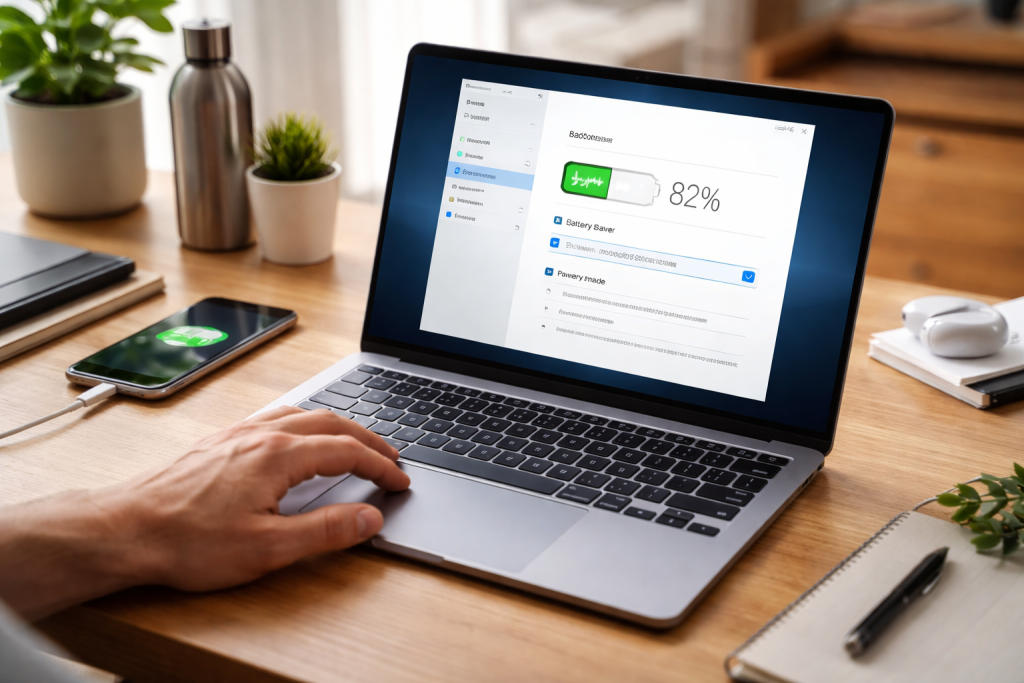
Adjusting how your PC utilizes power is a direct method to conserve battery charge. Operating systems offer built-in tools to manage these aspects.
Contents
- 0.1 Understanding Power Plans
- 0.2 Customizing Power Options
- 0.3 Wi-Fi and Bluetooth Power Management
- 0.4 CPU Power Management
- 0.5 Graphics Card Power Settings
- 0.6 Identifying Resource-Intensive Processes
- 0.7 Understanding the Impact of Browser Tabs
- 0.8 Understanding Li-ion Battery Technology
- 0.9 Charging Cycles
- 0.10 Minimizing Screen Timeout
- 0.11 Reducing Peripherals
- 0.12 Avoiding Resource-Intensive Tasks on Battery
- 0.13 Using Airplane Mode When Necessary
- 0.14 Operating System Updates
- 0.15 Driver Updates
- 0.16 Firmware Updates for Battery
- 0.17 Laptop Specifications
- 0.18 SSDs vs. HDDs
- 0.19 External Batteries and Power Banks
- 1 FAQs
- 1.1 1. How can I adjust power settings to prolong my PC battery life?
- 1.2 2. What energy-saving features can I utilize to conserve battery power?
- 1.3 3. How can I manage background processes and programs to preserve battery life?
- 1.4 4. What are some tips for properly charging and discharging my PC battery?
- 1.5 5. How can I optimize battery performance with regular maintenance and updates?
Understanding Power Plans
Power plans are collections of settings that control your PC’s power consumption. Windows, for example, offers plans like “Balanced,” “Power saver,” and “High performance.” The “Power saver” plan significantly reduces performance to extend battery life, while “High performance” prioritizes speed at the expense of battery duration. For most users seeking to maximize battery life, the “Power saver” or a customized plan that leans toward energy conservation is advisable.
Customizing Power Options
Beyond the preset plans, you can fine-tune specific settings. This includes adjusting screen brightness, setting hibernation or sleep timers, and controlling when hard disk drives spin down.
Screen Brightness
The display is a significant power consumer. Reducing the screen brightness can yield substantial power savings. Most laptops have dedicated function keys to adjust brightness quickly. Continuously running your screen at maximum brightness depletes the battery much faster. Think of the screen as a light bulb; the brighter it shines, the more electricity it requires.
Sleep and Hibernation Timers
Sleep mode allows your PC to enter a low-power state, rapidly resuming when you need it. Hibernation, on the other hand, saves your current session to the hard drive and shuts down the PC completely. While sleep consumes minimal power, hibernation uses virtually none. Setting appropriate timers for when your PC automatically enters sleep or hibernation can prevent unnecessary battery drain when the device is idle. It is like taking a brief nap versus a full night’s sleep—both conserve energy, but hibernation offers a deeper rest for the battery.
Hard Disk Drive Management
While modern SSDs consume less power than traditional HDDs, managing their activity can still contribute to battery conservation. Setting a timer for when the hard disk should spin down after a period of inactivity can further reduce power draw.
Modern PCs come equipped with hardware and software features designed to automatically conserve energy. Activating and understanding these can help preserve battery charge.
Wi-Fi and Bluetooth Power Management
Wireless radios, such as Wi-Fi and Bluetooth, consume power even when not actively transferring data. Your operating system likely has settings to manage these radios, allowing them to power down when not in use. For instance, disabling Wi-Fi and Bluetooth features when not in use can conserve energy.
CPU Power Management
The Central Processing Unit (CPU) is the brain of your computer, and its activity directly impacts battery life. Modern CPUs employ sophisticated power management techniques, dynamically adjusting their clock speed and voltage based on the workload. Correctly configuring your operating system’s power management settings enables the CPU to operate at lower power states during periods of low demand. This function is akin to a car’s engine; it idles at a lower RPM when stopped and revs higher when accelerating, but efficient engines use less fuel in both scenarios.
Graphics Card Power Settings
If your PC has a dedicated graphics card, it can be another significant power hog. Many systems allow you to configure graphics power-saving options, which can reduce the card’s performance and power consumption when not engaged in demanding graphical tasks, such as gaming or video editing. For everyday tasks, a less power-intensive setting is ideal.
Unseen applications and processes running in the background can silently drain your battery. Identifying and managing these can significantly prolong battery life.
Identifying Resource-Intensive Processes
Your operating system provides tools, such as the Task Manager in Windows or Activity Monitor in macOS, to view running processes and their resource consumption. High CPU usage or significant disk activity from a background process indicates it is drawing considerable power.
Closing Unnecessary Applications
It is a common habit to leave many applications open, even those not actively being used. Each open application, especially those with continuous background activity, consumes system resources and therefore battery power. Regularly closing applications you are not currently using is a simple yet effective measure. This is like decluttering your workspace; removing unnecessary items makes it easier to focus and use your resources efficiently.
Limiting Startup Programs
Many applications are configured to launch automatically when your PC starts up. Some of these may be essential, but many are not. Reducing the number of programs that launch at startup can decrease initial battery drain and free up system resources.
Understanding the Impact of Browser Tabs
Web browsers, particularly when many tabs are open, can be significant battery consumers. Websites with dynamic content, ads, or embedded videos are particularly resource-intensive. Closing unnecessary tabs or using browser extensions that manage tab activity can help.
The way you charge and discharge your laptop’s battery has a direct impact on its long-term health and capacity.
Understanding Li-ion Battery Technology
Modern PC batteries are typically lithium-ion (Li-ion). These batteries do not have a “memory effect” like older battery technologies, meaning you do not need to fully discharge them before recharging. In fact, keeping them between 20% and 80% charge can be beneficial for longevity.
Avoiding Deep Discharges
Constantly letting your battery drain to 0% can stress the battery and reduce its overall lifespan. While it’s not as detrimental as with older battery types, it’s still a practice to avoid when possible.
The Myth of “Charging to 100%”
While charging to 100% is convenient, keeping a Li-ion battery at full charge for extended periods, especially when plugged into power, can also degrade it over time due to increased internal stress. Some laptops offer battery management software that allows you to set a maximum charge level, which can be useful if you frequently keep your laptop plugged in.
Charging Cycles
Each battery has a finite number of charge cycles it can endure before its capacity significantly diminishes. A charge cycle represents one full discharge and recharge. By managing your usage and avoiding unnecessary deep discharges, you can indirectly extend the number of useful years your battery serves.
Beyond technical settings, your everyday usage patterns play a crucial role in how long your PC battery lasts.
Minimizing Screen Timeout
Shortening the time before your screen turns off when idle can save a noticeable amount of power. This is a simple setting adjustment within your power options.
Reducing Peripherals
Connecting multiple external devices like USB drives, external hard drives, or even charging your phone through your PC’s USB port draws power from the battery. Disconnect these when not in use.
Avoiding Resource-Intensive Tasks on Battery
Tasks like video editing, gaming, or running complex simulations are power-hungry. If possible, perform these activities while your laptop is plugged into a power source. This is like trying to run a marathon on a single sip of water—it’s possible, but not ideal or efficient.
Using Airplane Mode When Necessary
If you are not actively using Wi-Fi or cellular data, switching to Airplane mode will disable these radios and conserve battery power. This is particularly useful on flights or in areas with no wireless network available.
Keeping your system software up-to-date can also contribute to better battery management.
Operating System Updates
Operating system manufacturers frequently release updates that include power management improvements. These updates can optimize how your system utilizes power, leading to extended battery life.
Driver Updates
Drivers are software that allow your hardware components to communicate with your operating system. Keeping graphics card drivers, chipset drivers, and other essential drivers updated ensures that these components are functioning efficiently and utilizing power appropriately.
Firmware Updates for Battery
Some laptop manufacturers provide firmware updates specifically for the battery itself. These updates can sometimes recalibrate the battery’s charging and discharging behavior, potentially improving its perceived capacity and performance.
When purchasing a new PC or accessories, consider battery life as a key factor.
Laptop Specifications
When buying a laptop, look for specifications that indicate good battery life. This often includes processors optimized for efficiency, larger battery capacities (measured in watt-hours or mAh), and energy-efficient displays.
SSDs vs. HDDs
Solid State Drives (SSDs) generally consume less power than traditional Hard Disk Drives (HDDs) because they have no moving parts. If your PC has an HDD, upgrading to an SSD can offer a noticeable improvement in battery life, along with faster boot times and application loading.
External Batteries and Power Banks
For extended use away from a power outlet, consider a portable power bank or an extended-life external battery pack. These accessories can provide a significant charge reserve, allowing you to work for much longer periods without needing to find a wall socket. Ensure compatibility with your PC’s charging requirements.
FAQs
1. How can I adjust power settings to prolong my PC battery life?
To extend your PC battery life, you can adjust power settings by reducing screen brightness, setting shorter idle times for the display and hard drive, and choosing a power plan that prioritizes energy conservation.
2. What energy-saving features can I utilize to conserve battery power?
You can utilize energy-saving features such as sleep mode, hibernate mode, and power-saving modes for your processor and wireless adapter to conserve battery power and prolong the battery life of your PC.
3. How can I manage background processes and programs to preserve battery life?
To preserve battery life, you can manage background processes and programs by closing unnecessary applications, disabling startup programs, and using Task Manager to monitor and end processes that are consuming excessive battery power.
4. What are some tips for properly charging and discharging my PC battery?
To properly charge and discharge your PC battery, it is recommended to avoid overcharging, keep the battery between 20-80% charge, and occasionally allow the battery to fully discharge and recharge to maintain its health.
5. How can I optimize battery performance with regular maintenance and updates?
You can optimize battery performance by keeping your operating system and drivers up to date, cleaning the battery contacts, and performing regular battery calibration to ensure accurate battery life estimates and overall battery health.

At SecureByteHub, we are passionate about simplifying cybersecurity and technology for everyone. Our goal is to provide practical, easy-to-understand guides that help individuals, students, and small businesses stay safe in the digital world. From online security tips to the latest tech insights, we aim to empower our readers with knowledge they can trust