
How to Keep Your USB Drive Safe from Cyber Threats: Expert Tips
USB drives are common tools for data transfer and storage. However, their portability and widespread use also make them vulnerable to various cyber threats. Understanding these risks and implementing security measures is crucial for protecting your data. This article outlines methods to secure your USB drive and manage potential dangers.
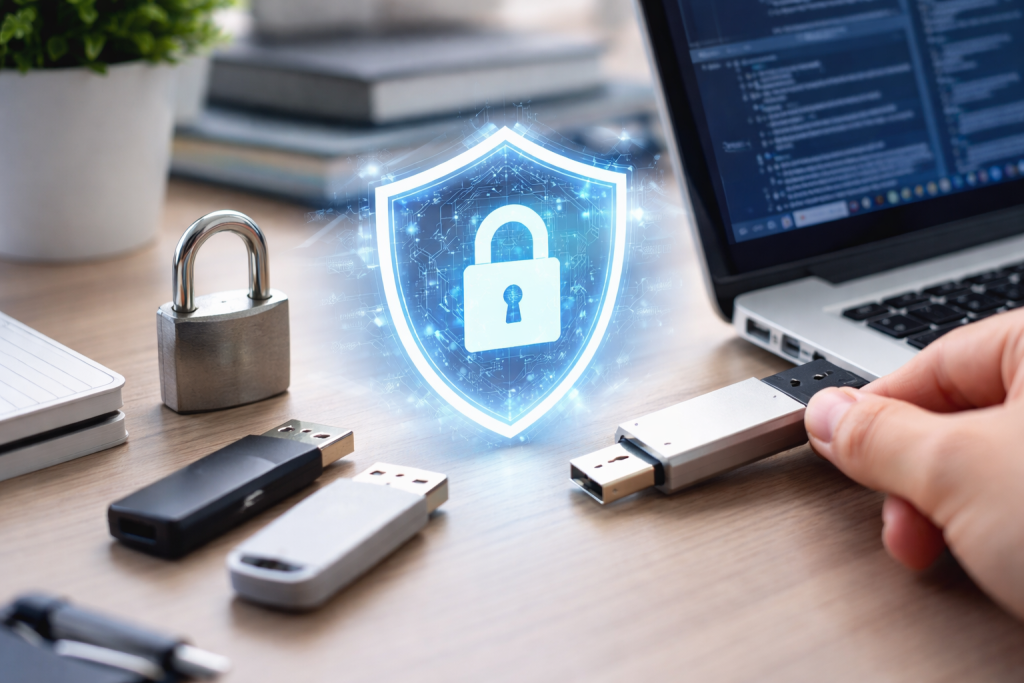
USB drives, often considered simple storage devices, face a range of threats that can compromise the data they hold or introduce malicious software to connected systems. Recognizing these threats is the first step toward effective mitigation.
Contents
- 0.1 Malware Infection
- 0.2 Data Theft
- 0.3 Phishing and Social Engineering
- 0.4 Data Corruption
- 0.5 Know Your Source
- 0.6 Avoid Public Computers
- 0.7 Maintain System Security
- 0.8 Why Encrypt Your USB Drive?
- 0.9 Methods of Encryption
- 0.10 Password Best Practices
- 0.11 Scan Before Opening
- 0.12 Disable Autorun/AutoPlay
- 0.13 Work from a Dedicated, Secure Environment
- 0.14 Keep it in a Secure Location
- 0.15 Consider Physical Trackers or Alarm Systems
- 0.16 Don’t Attach to Keys
- 0.17 Data Destruction
- 0.18 Safely Eject Your Drive
- 0.19 Periodically Back Up Your Data
- 0.20 Monitor Drive Health
- 0.21 Keep Firmware Updated
- 0.22 Biometric Authentication
- 0.23 Quantum-Resistant Encryption
- 0.24 Trusted Platform Modules (TPM) Integration
- 0.25 Blockchain-Based Security
- 0.26 Self-Destructing or Time-Limited Access Drives
- 1 FAQs
- 1.1 1. What are common cyber threats to USB drives?
- 1.2 2. What are the best practices for securing a USB drive?
- 1.3 3. Why is encryption and password protection essential for USB security?
- 1.4 4. What are some tips for avoiding malware and viruses when using a USB drive?
- 1.5 5. How can I protect my USB drive from theft, loss, and data corruption?
Malware Infection
Malware, a broad term for malicious software, is a primary concern for USB drives.
- Viruses are a type of malware that attaches to legitimate programs and replicates. A USB stick can act as a carrier, spreading viruses between uninfected computers and those already compromised.
- Worms are self-replicating independent programs. Unlike viruses, they do not need to attach to existing programs to spread. A worm on a USB drive can swiftly propagate through a network once connected.
- Trojan horses disguise themselves as useful software. When executed, they perform malicious actions. A user might unknowingly install a Trojan from a USB drive, granting an attacker access or control.
- Ransomware encrypts data and demands payment for its release. Infected USB drives can introduce ransomware to a system, incapacitating files.
- Spyware collects information about users without their knowledge. A USB drive containing spyware can monitor activities on a computer it connects to and transmit sensitive data.
Data Theft
Due to their physical nature, USB drives are vulnerable to theft, which can result in direct data loss if not secured.
- Physical device theft is a straightforward threat. A lost or stolen unencrypted USB drive exposes all its contents to anyone who finds it. The small size makes them easy targets for opportunistic thieves.
- Shoulder surfing extends beyond direct physical access. An individual might observe you typing passwords or accessing sensitive files on your drive, gathering information for later exploitation.
Phishing and Social Engineering
While typically associated with email or websites, social engineering tactics can also leverage USB drives.
- Dropping infected USB drives is a tactic where attackers leave them in public places. The hope is that a curious individual will insert the drive into their computer, unwittingly activating malware. This type of attack relies on human curiosity and a lack of caution.
- Impersonation involves an attacker pretending to be a trusted entity to gain access. They might hand over a “company” USB drive that is, in fact, malicious, counting on the recipient’s trust.
Data Corruption
Beyond malicious attacks, data on USB drives can be lost or rendered unusable due to technical issues.
- Improper ejection is a common cause of data corruption. Removing a USB drive while data is still being written or read can damage files or the drive’s file system structure.
- Hardware failure can occur due to manufacturing defects, physical damage (wear and tear), or simply the end of the device’s lifespan. Such failures can make data inaccessible.
- Power surges or outages during data transfer can also corrupt data. An unexpected interruption of power to the USB drive or the connected computer can lead to incomplete data writes and damaged files.
Securing a USB drive involves a multi-layered approach, combining preventative measures with good digital hygiene.
Know Your Source
Before connecting any USB drive to your computer, consider its origin.
- Unidentified drives are suspicious. Never insert a USB drive you find or receive from an unknown individual into your computer. Treat it like an unknown package; it might contain something harmful.
- Scan new drives immediately. Even drives from trusted sources should be scanned with antivirus software before opening any files. This is a quick inspection that can prevent a larger problem.
Avoid Public Computers
Public computers frequently exhibit weak security, leaving them vulnerable to compromise.
- Data leakage. If a public computer has a spyware infection, using your USB drive increases the risk of data copying, viewing, or keystroke logging.
- Infection risk. Public machines are more likely to harbor malware. Connecting your USB drive can transfer this malware to your device, then to your personal computer.
Maintain System Security
The security of your USB drive is intertwined with the security of the systems it connects to.
- Antivirus software. Ensure your computer has up-to-date antivirus software with real-time scanning enabled. This app acts as a shield, detecting and neutralizing threats before they can take root.
- Operating system updates. Keep your operating system updated. Updates often include security patches that address vulnerabilities attackers might exploit. An unpatched system is like a house with an open window.
- Firewall Protection. A firewall monitors and controls incoming and outgoing network traffic. It can prevent malicious software from communicating with external servers, even if it manages to get on your system.
Encryption is the cornerstone of data security on portable drives. It acts as a digital lock, rendering your data unreadable to unauthorized individuals. Password protection adds another layer of security, controlling access to the encrypted data.
Why Encrypt Your USB Drive?
Encryption transforms data into an unreadable format using an algorithm and a key.
- Data Confidentiality. If a drive is lost or stolen, encrypted data remains confidential. Without the decryption key (usually a password), the contents are gibberish. This aspect is critical for sensitive information such as personal documents, financial records, or intellectual property.
- Compliance Requirements. Many industries and regulations (e.g., GDPR, HIPAA) mandate data encryption for sensitive information. Using encrypted USB drives helps organizations meet these compliance standards, avoiding penalties and safeguarding reputation.
- Defense Against Forensic Analysis. Sophisticated attackers might attempt to recover data from a physically accessed drive. Encryption makes this task significantly harder, often impossible, without the correct key.
Methods of Encryption
Several methods are available for encrypting USB drives, varying in ease of use and robustness.
- Built-in Operating System Features.
- BitLocker (Windows Pro/Enterprise/Education): BitLocker Drive Encryption is a full-disk encryption feature included with some editions of Microsoft Windows. It encrypts the entire drive, requiring a password or a smart card to access data. BitLocker To Go specifically encrypts removable drives using AES encryption.
- FileVault (macOS): FileVault offers full-disk encryption for macOS systems. While primarily for internal drives, if you format a USB drive with the macOS file system (HFS+ or APFS), you can encrypt it using Disk Utility, similar to FileVault’s underlying technology.
- Third-Party Encryption Software. Several cross-platform solutions provide robust encryption for USB drives.
- VeraCrypt: An open-source, free disk encryption software. It can encrypt entire partitions or storage devices, as well as create encrypted virtual disks. VeraCrypt is known for its strong encryption algorithms and hidden volumes feature. The setup takes time, but it works on Windows, macOS, and Linux.
- AxCrypt: This software encrypts individual files rather than the entire drive. It integrates with Windows Explorer, allowing users to encrypt and decrypt files with a right-click. While not full-disk, it’s suitable for encrypting specific sensitive files on a drive.
- Rohos Mini Drive: Specifically designed for USB flash drives, it creates a hidden, encrypted partition on the drive, protecting your files with a password. It’s often praised for its portability, as the encryption software itself can reside on the USB drive, allowing access to encrypted data from any computer without prior installation.
- Hardware-Encrypted USB Drives. These drives have a dedicated encryption chip built into the device itself.
- Advantages: Encryption and decryption occur at the hardware level, often making them faster and eliminating the need for software installation. They are generally more secure as the encryption key never leaves the device. Many are FIPS 140-2 certified, meaning they meet government security standards.
- Drawbacks: Higher cost, and if the hardware fails, data recovery is often impossible. If the drive’s built-in password mechanism is compromised, the entire drive is at risk.
Password Best Practices
A strong encryption method is only effective with a strong password.
- Complexity: Use a combination of uppercase and lowercase letters, numbers, and symbols.
- Length: Longer passwords are harder to guess. Aim for at least 12-16 characters.
- Uniqueness: Do not reuse passwords across different accounts or devices. If one password is compromised, others remain safe.
- Avoid identifiable information: Do not use personal details, common words, or easily guessable sequences.
- Use a password manager: Consider using a reputable password manager to generate and store strong, unique passwords securely.
Preventing malware and viruses from infecting your USB drive involves defensive habits and a proactive stance. Your USB drive can be a bridge for malware, traversing between systems.
Scan Before Opening
Before interacting with any files on a USB drive, especially an unfamiliar one, scan it with antivirus software. This is a fundamental security step.
- Right-click scan: Most antivirus programs integrate with the operating system, allowing you to right-click on the drive in your file explorer and select a “Scan with…” option. This ensures that dormant threats are identified before they can activate.
- Automatic scanning configurations: Some antivirus solutions can be configured to automatically scan any new USB drive inserted into the system. This provides a layer of defense without requiring manual intervention.
Disable Autorun/AutoPlay
The Autorun/AutoPlay feature in operating systems automatically executes programs or opens files when a removable drive is inserted. This feature is a common vector for malware.
- How it works: When a USB drive containing a
autorun.inffile is inserted, the operating system can automatically launch an executable specified in that file. Malware authors frequently exploit this to infect systems without user interaction. - Disabling it: For Windows users, Autorun can be disabled through Group Policy Editor (for Pro/Enterprise versions) or by editing the registry. This prevents malicious software from launching automatically, forcing you to manually open files, giving your antivirus a chance to intercept threats.
Work from a Dedicated, Secure Environment
For handling sensitive data on a USB drive, consider using a machine specifically dedicated to this task, or at least a highly secured virtual environment.
- Air-gapped systems: For extremely sensitive data, an “air-gapped” system—one that is never connected to the internet or any other network—provides the highest level of isolation from online threats. Data is transferred only via trusted, scanned USB drives.
- Virtual machines: Operating systems running within a virtual machine (VM) are isolated from the host operating system. If a VM gets infected from a USB drive, the core system remains secure. This allows you to test suspicious files or access data from untrusted USB drives in a contained manner.
The small size of USB drives, while convenient, also makes them easy to misplace or for opportunistic theft. Physical security measures are as crucial as digital ones.
Keep it in a Secure Location
Just as you wouldn’t leave a wallet or keys exposed, treat your USB drive with similar care.
- Designated storage: Have a specific, secure place for your USB drive when not in use. This could be a locked drawer, a secure pouch, or a safe. A consistent storage location reduces the chances of misplacement.
- Avoid public display: Do not leave your USB drive lying on desks in public places, coffee shops, or shared office spaces. Such visibility invites both casual theft and “shoulder surfing,” where someone observes your access efforts.
Consider Physical Trackers or Alarm Systems
For valuable or particularly sensitive USB drives, technology can assist in recovery or deter theft.
- Built-in tracking: Some USB drives now come with integrated GPS or Bluetooth trackers that can help locate a lost device, similar to how you track a phone or keys. These are often premium features.
- Alarm mechanisms: Certain drives are equipped with small alarms that can be triggered if the device is moved or disconnected without authorization. While not foolproof, this can alert you to unauthorized access attempts.
Don’t Attach to Keys
A common practice, attaching a USB drive to a key ring, can be a security liability.
- Increased loss risk: Keys are frequently handled and can easily be lost or stolen. If your keys go missing, so does your USB drive, potentially compromising its contents.
- Visibility: A USB drive on a key ring makes it obvious you are carrying data. This can attract unwanted attention from potential thieves aware of the value of portable storage.
Data Destruction
When a USB drive is no longer needed, simply deleting files is insufficient. Data recovery tools can often retrieve deleted data.
- Secure erasure software: Use specialized software designed to securely wipe a drive. These tools overwrite the data multiple times with meaningless patterns, rendering the original data unrecoverable. For Windows, tools like Darik’s Boot and Nuke (DBAN) or specific features in drive management utilities can achieve this.
- Physical destruction: For ultimate data destruction and when the drive is truly obsolete, physical destruction is effective. This involves processes like shredding, degaussing (for magnetic drives, though most USBs are flash-based), or drilling through the memory chips. This ensures no data can ever be retrieved.
Beyond external threats, the internal integrity of your USB drive and its data requires periodic attention. Regular maintenance ensures the drive functions reliably and prevents unexpected data loss.
Safely Eject Your Drive
Improper removal is a leading cause of data corruption on USB drives.
- The “Safely Remove Hardware” option: This feature, available in both Windows and macOS, ensures that all ongoing read/write operations on the drive are completed and that the operating system has finished all background processes related to the device. Ejecting a drive prematurely can sever these operations, resulting in corrupted files or an unreadable file system. Treat the ejection process as a formal handshake before disconnecting.
- Wait for confirmation: Always wait for the “Safe to Remove Hardware” notification before physically unplugging the drive. This small delay can save you from significant data loss.
Periodically Back Up Your Data
A USB drive is a portable storage solution, not a primary backup.
- Redundancy is key: The most robust data protection strategy involves redundancy. If the data on your USB drive is important, ensure a copy exists elsewhere. This could be on your computer’s hard drive, an external backup drive, or cloud storage.
- Regular schedule: Establish a routine for backing up the contents of your USB drive. Depending on the frequency of data changes, this could be daily, weekly, or monthly. Automation tools can streamline this process. Consider the USB drive as a temporary vessel for data in transit, and its contents should always be duplicated elsewhere for long-term safety.
Monitor Drive Health
Like any storage device, USB drives can degrade over time.
- Error-checking tools: Operating systems provide built-in tools (e.g.,
chkdskon Windows, Disk Utility’s First Aid on macOS) that can scan and repair basic file system errors. Running these utilities periodically can identify and fix minor issues before they escalate into major data loss. - SMART data (Self-Monitoring, Analysis, and Reporting Technology): While less common or accessible on basic USB flash drives compared to hard drives, some higher-end USB devices or external SSDs that connect via USB may offer SMART-like data regarding their health. Monitoring such data, if available, can provide early warnings of impending failure. For standard USB drives, unusual slowness, read/write errors, or a tendency to disconnect spontaneously can be red flags indicating a failing device.
Keep Firmware Updated
Some advanced USB drives, especially those with hardware encryption or unique features, have firmware that can receive updates.
- Security patches and bug fixes: Firmware updates often contain critically important security patches addressing recently discovered vulnerabilities. They can also improve performance, fix bugs, and enhance compatibility.
- Check the manufacturer’s website: It is wise to periodically check the manufacturer’s website for your specific USB drive model to see if any firmware updates are available. Applying these updates can bolster the drive’s security and reliability, similar to updating your operating system.
The landscape of USB security is evolving with advancements in technology and increasing awareness of cyber threats. Future developments aim to make USB drives more resilient and user-friendly.
Biometric Authentication
Moving beyond traditional passwords, biometric authentication offers a more convenient and often more secure way to access data.
- Fingerprint scanners: USB drives are increasingly incorporating small fingerprint scanners. These allow users to unlock the drive by simply placing a registered finger on the sensor. This eliminates the need to remember complex passwords while providing a unique, hard-to-replicate access method.
- Facial and iris recognition: While less common for the physical form factor of current USB drives, advancements in miniaturized facial or iris recognition technology could eventually lead to such authentication methods being integrated into larger, high-capacity portable storage devices. The appeal is the hands-free, intuitive access.
Quantum-Resistant Encryption
As quantum computing develops, current encryption standards may become vulnerable. The future of USB security will need to address this challenge.
- Post-quantum cryptography (PQC): Researchers are developing new cryptographic algorithms designed to withstand attacks from quantum computers. Future USB drives, especially those handling highly sensitive data over extended periods, will likely incorporate PQC standards to protect data confidentiality against future decryption capabilities.
- Hybrid encryption: An interim solution might involve hybrid encryption schemes, combining current strong algorithms with emerging PQC algorithms to provide a layered defense against both classical and quantum threats.
Trusted Platform Modules (TPM) Integration
TPMs are secure cryptoprocessors designed to secure hardware through integrated cryptographic keys.
- Enhanced hardware security: Integrating TPMs into USB drives could provide a hardware root of trust, verifying the integrity of the drive’s firmware and preventing tampering. This could ensure that the drive itself has not been compromised before it accepts data or grants access.
- Secure boot for USB devices: Similar to how TPMs enable secure boot on computers, they could be used to ensure that a USB drive only runs trusted software or firmware upon connection, preventing the execution of malicious code from the device itself.
Blockchain-Based Security
Blockchain technology, known for its distributed ledger and immutable records, presents interesting possibilities for USB security, particularly in data integrity and authentication.
- Immutable audit trails: A blockchain could record every interaction with a USB drive, creating an unchangeable audit trail of who accessed the data, when, and from where. This could be beneficial for forensic analysis and compliance.
- Decentralized identity for drives: Each USB drive could have a unique, cryptographically secured identity on a blockchain. This could authenticate the drive’s origin and verify its integrity against a decentralized database, making it harder for counterfeit or compromised drives to be used.
Self-Destructing or Time-Limited Access Drives
For highly sensitive, short-term data sharing, the future may see drives with built-in mechanisms for data expiry.
- Timed data access: Drives could be programmed to allow access to data only for a specific period, after which the data either becomes inaccessible or is securely wiped. This is useful for transient, confidential information.
- Remote wiping capabilities: Enhanced features could allow administrators or owners to remotely wipe the contents of a lost or stolen USB drive, similar to how smartphones can be remotely erased. This adds a critical layer of defense against data exposure from physical loss.
FAQs
1. What are common cyber threats to USB drives?
2. What are the best practices for securing a USB drive?
3. Why is encryption and password protection essential for USB security?
4. What are some tips for avoiding malware and viruses when using a USB drive?
5. How can I protect my USB drive from theft, loss, and data corruption?

At SecureByteHub, we are passionate about simplifying cybersecurity and technology for everyone. Our goal is to provide practical, easy-to-understand guides that help individuals, students, and small businesses stay safe in the digital world. From online security tips to the latest tech insights, we aim to empower our readers with knowledge they can trust