
The Ultimate Guide to Securing Your Home Router: Keep Your Internet Safe and Secure
Your home router acts as the gateway between your local network and the internet. It is a critical component in your digital life, and its security directly impacts the safety of your personal data and online activities. Unsecured routers can be exploited by malicious actors, leading to data breaches, identity theft, and unauthorized access to your devices. This article outlines essential steps for securing your home router.
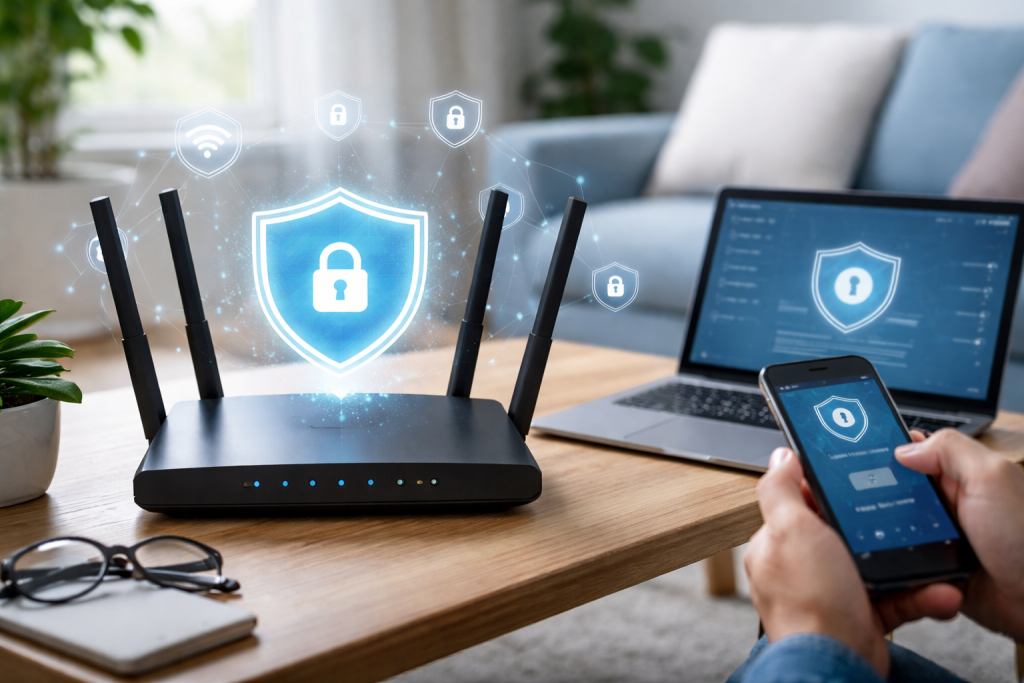
The internet is a vast and often unpredictable environment. Your router is the first line of defense, a digital bouncer at the door of your home network. Just as you wouldn’t leave your front door unlocked, leaving your router unprotected invites unwanted guests. These “guests” could be hackers looking to steal personal information, install malware on your devices, or use your internet connection for illicit activities.
A compromised router can lead to various problems. Your online banking details could be intercepted, your smart devices (like security cameras or thermostats) could be controlled remotely, or your internet speed could be degraded. Understanding these risks is the first step toward building a robust defense. Router security is not a one-time task; it is an ongoing process that requires vigilance and regular maintenance.
The default credentials provided by router manufacturers are often weak and publicly known. Changing these immediately is a fundamental security measure.
Contents
- 0.1 Creating a Strong Administrator Password
- 0.2 Changing the Default Wi-Fi Network Name (SSID)
- 0.3 Enabling WPA3 or WPA2 Encryption
- 0.4 Configuring the Router’s Built-in Firewall
- 0.5 Regularly Checking for and Installing Firmware Updates
- 0.6 Setting Up a Guest Network
- 0.7 Implementing MAC Address Filtering (with caveats)
- 0.8 Disabling WPS (Wi-Fi Protected Setup)
- 0.9 Understanding the Role of a VPN
- 0.10 Reviewing Router Logs and Connected Devices
- 0.11 Regularly Changing Passwords
- 0.12 Running Security Scans
- 1 FAQs
- 1.1 1. Why is it important to secure your home router?
- 1.2 2. How can I set up a strong and secure password for my router?
- 1.3 3. What is encryption and firewall protection for a home network, and how can I implement it?
- 1.4 4. Why is it important to update your router’s firmware for enhanced security?
- 1.5 5. How can I secure my Wi-Fi network and manage access control?
Creating a Strong Administrator Password
Upon setting up your router or accessing its configuration interface, you are typically prompted for an administrator username and password. This password controls access to your router’s settings. Many routers ship with generic usernames like “admin” and passwords like “password” or “1234.” These are widely cataloged by attackers.
A strong password for your router’s administrator account should be unique. It should not be a password you use for any other service. Employ a combination of uppercase and lowercase letters, numbers, and symbols. Aim for a length of at least 12-16 characters. Avoid common phrases, personal information, or easily guessable sequences. Think of it as the master key to your digital fortress. If you find it difficult to remember such complex passwords, consider using a password manager. These tools securely store and generate strong passwords for you.
Changing the Default Wi-Fi Network Name (SSID)
Your Wi-Fi network’s name, or Service Set Identifier (SSID), is often broadcast by default. While hiding your SSID does not provide significant security on its own (tools exist to detect hidden networks), retaining the default SSID can inadvertently provide information about your router’s make and model. This information can be used by attackers to identify known vulnerabilities associated with specific router models. Change the default SSID to something that doesn’t reveal personal details or your router type. For example, instead of “Linksys_ABCDEF,” use “MyHomeNetwork” or “SecureNet.”
Encrypting your Wi-Fi signals and configuring your router’s firewall are crucial layers of defense against unauthorized access.
Enabling WPA3 or WPA2 Encryption
Wireless Protected Access (WPA) is a security protocol used to secure wireless computer networks. WPA3 is the latest and most secure standard. If your router and devices support WPA3, enable it. If not, ensure you are using WPA2 (with AES encryption) as a minimum safeguard. Avoid WEP (Wired Equivalent Privacy), as it is outdated and easily crackable.
WPA2 and WPA3 encrypt the data transmitted over your Wi-Fi network, making it unreadable to anyone without the encryption key (your Wi-Fi password). Think of it as a secret language spoken only by your devices and your router. Without the key, an eavesdropper hears only gibberish.
The Wi-Fi password itself needs to be strong. Similar to your administrator password, it should be long, complex, and unique. Avoid sharing your primary Wi-Fi password widely. For guests, consider setting up a separate guest network.
Configuring the Router’s Built-in Firewall
Most modern routers include a built-in firewall. This acts as a digital bouncer, carefully examining incoming and outgoing network traffic. Its purpose is to permit legitimate traffic while blocking suspicious or unauthorized attempts to access your network.
By default, router firewalls usually offer a basic level of protection. However, you can often configure them further:
- Disable UPnP (Universal Plug and Play): While convenient for device setup, UPnP can create security vulnerabilities by automatically opening ports on your firewall. Unless you specifically need it for certain applications (e.g., some gaming consoles), disable it.
- Enable SPI (Stateful Packet Inspection): SPI monitors the state of network connections, ensuring that only data packets associated with active, legitimate connections are allowed through.
- Block Unused Ports: Your router has numerous ports, some of which may be open by default. Close any ports you are not actively using to reduce the attack surface. This is like boarding up unused windows in your house.
- Deny External Access: Unless you require remote access to your network, ensure that remote administration is disabled. This prevents anyone from outside your network from accessing your router’s configuration interface.
Firmware is the operating system for your router. Like any software, it can contain vulnerabilities that attackers exploit.
Regularly Checking for and Installing Firmware Updates
Router manufacturers frequently release firmware updates that address security flaws, improve performance, and add new features. Ignoring these updates leaves your router exposed to known vulnerabilities. It is like driving a car with safety recalls ignored; you are at unnecessary risk.
Access your router’s administration interface (using the strong administrator password you established) and look for a “Firmware Update” or “Maintenance” section. Some routers offer automatic updates, which is convenient, but verify that this feature is enabled and working. If not, you will need to manually check for and download updates from your router manufacturer’s website. Follow the manufacturer’s instructions carefully for the update process. Incorrect firmware installation can inadvertently “brick” your router, rendering it unusable.
Beyond encryption, managing who and what connects to your network provides an additional layer of control.
Setting Up a Guest Network
Most modern routers offer the option to create a separate guest network. This is highly recommended. A guest network operates independently of your main network, preventing guests from accessing your personal devices (computers, printers, and network-attached storage). It also typically uses a separate password. Think of it as offering your guests a separate sitting room rather than the keys to your entire house.
Implementing MAC Address Filtering (with caveats)
Media Access Control (MAC) address filtering allows you to specify which devices are permitted to connect to your Wi-Fi network based on their unique hardware address. This can add a slight barrier to entry for unauthorized devices.
However, MAC address filtering should not be considered a primary security measure. MAC addresses can be spoofed (changed) by determined attackers. It offers a speed bump, not a solid wall. Use it as an additional, rather than primary, layer of protection. When you set it up, only devices with a MAC address on your approved list will be able to connect.
Disabling WPS (Wi-Fi Protected Setup)
WPS was designed to simplify connecting devices to a Wi-Fi network with the push of a button or a short PIN. However, WPS has known security vulnerabilities, particularly related to the PIN entry method. This vulnerability can allow an attacker to guess your Wi-Fi password relatively quickly. Disable WPS in your router settings to eliminate this potential weakness.
A Virtual Private Network (VPN) creates a secure, encrypted tunnel between your device and a VPN server.
Understanding the Role of a VPN
While router security protects your local network, a VPN secures your internet traffic even after it leaves your router. When you connect to a VPN, your internet traffic is routed through a remote server operated by the VPN provider. This encrypts your data, masks your IP address, and can bypass content restrictions.
Consider a VPN as an armored car for your data. Your router gets the data to the edge of your property, but the VPN ensures its safe transit across the open highway of the internet. This is particularly important when using public Wi-Fi networks, where your router’s security doesn’t extend. A VPN adds another layer of privacy and protection against various online threats, even when your home router is perfectly secure.
Router security is not a set-it-and-forget-it task. Regular checks ensure continued protection.
Reviewing Router Logs and Connected Devices
Your router maintains logs of various events, including connection attempts, firmware changes, and error messages. Periodically reviewing these logs can help identify unusual activity or attempted breaches. Look for unfamiliar IP addresses trying to connect, repeated failed login attempts, or unexpected system reboots.
Additionally, regularly check the list of connected devices in your router’s interface. If you see devices you don’t recognize, it could indicate an unauthorized connection. Immediately investigate and block any unknown devices.
Regularly Changing Passwords
While less frequent than firmware updates, consider changing your router’s administrator password and your Wi-Fi password periodically. This is especially important if you suspect any compromise or if you have shared your Wi-Fi password with many people.
Running Security Scans
Periodically use online security scanners or dedicated security software to scan your network for vulnerabilities. These tools can identify open ports, weak configurations, or known exploits that your router might be susceptible to. Think of it as a regular security audit of your network’s perimeter.
By consistently applying these practices, you can significantly enhance the security of your home router, safeguarding your internet experience and protecting your digital life. Remember, your router is a critical piece of your network infrastructure; treat its security with the importance it deserves.
FAQs
1. Why is it important to secure your home router?
Securing your home router is important because it helps protect your personal information, prevents unauthorized access to your network, and safeguards against cyber attacks and malware.
2. How can I set up a strong and secure password for my router?
You can set up a strong and secure password for your router by using a combination of uppercase and lowercase letters, numbers, and special characters. It’s important to avoid using easily guessable passwords such as “password” or “123456.”
3. What is encryption and firewall protection for a home network, and how can I implement it?
Encryption and firewall protection help secure your home network by encrypting data and blocking unauthorized access. You can implement encryption by enabling WPA2 or WPA3 encryption on your router, and you can set up a firewall by configuring the settings on your router.
4. Why is it important to update your router’s firmware for enhanced security?
Updating your router’s firmware is important because it helps patch security vulnerabilities and bugs, improves performance, and adds new features. Regular firmware updates can help keep your router secure against emerging threats.
5. How can I secure my Wi-Fi network and manage access control?
You can secure your Wi-Fi network by hiding the network name (SSID), enabling network encryption, and using MAC address filtering to control which devices can connect to your network. Access control can also be managed through the router’s settings to restrict or allow specific devices.

At SecureByteHub, we are passionate about simplifying cybersecurity and technology for everyone. Our goal is to provide practical, easy-to-understand guides that help individuals, students, and small businesses stay safe in the digital world. From online security tips to the latest tech insights, we aim to empower our readers with knowledge they can trust